Catalog Essentials
Allergens
The information that is not allowed to be missing: we declare the common allergens with clear icons, so every product warns correctly and your menu is right — on paper and in practice.
All the points of the film 5 steps · 2:34
What you will learn
- Creating an allergen with a name and icon
- Appearance: how it shows on the product
- The common ones worth having ready
Step by step
-
1
The Allergens page
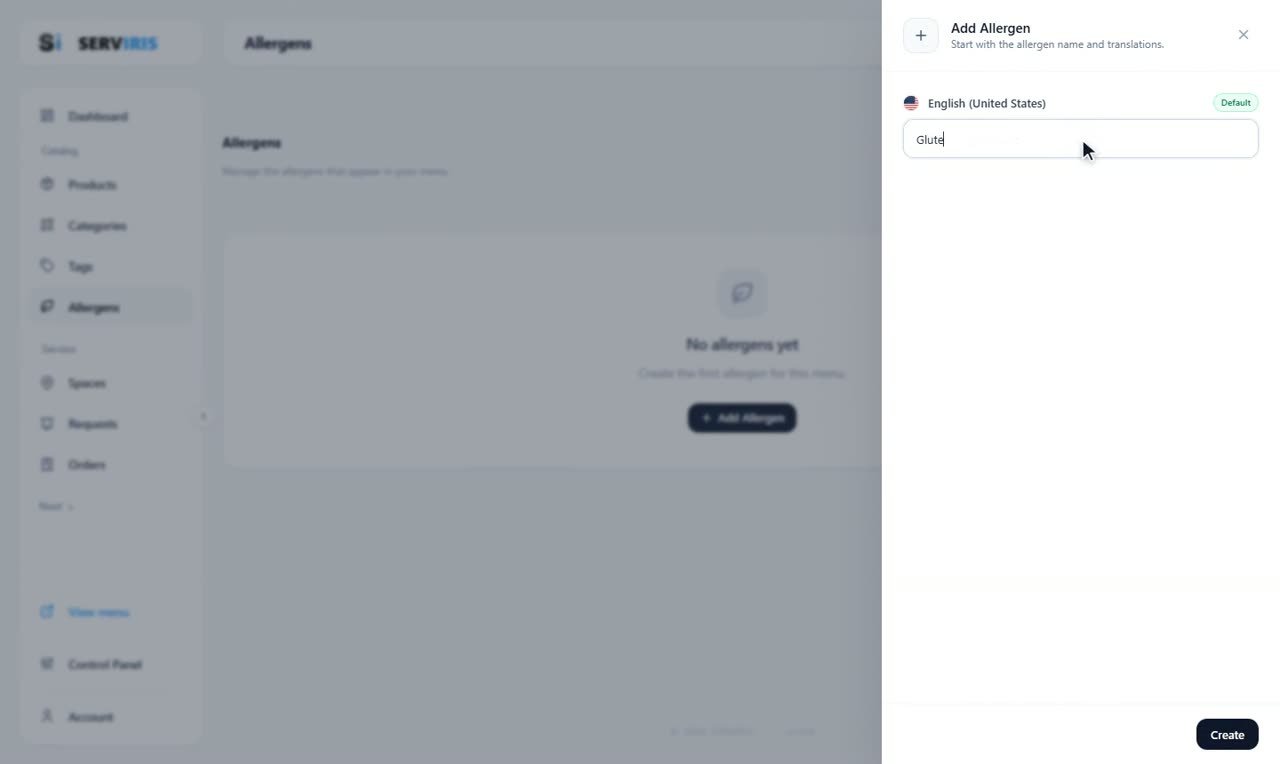
Left menu → Allergens. It works like Tags — same wizard, same care — with the emphasis on being recognizable. First the name: “Gluten”.
-
2
An icon that speaks for itself
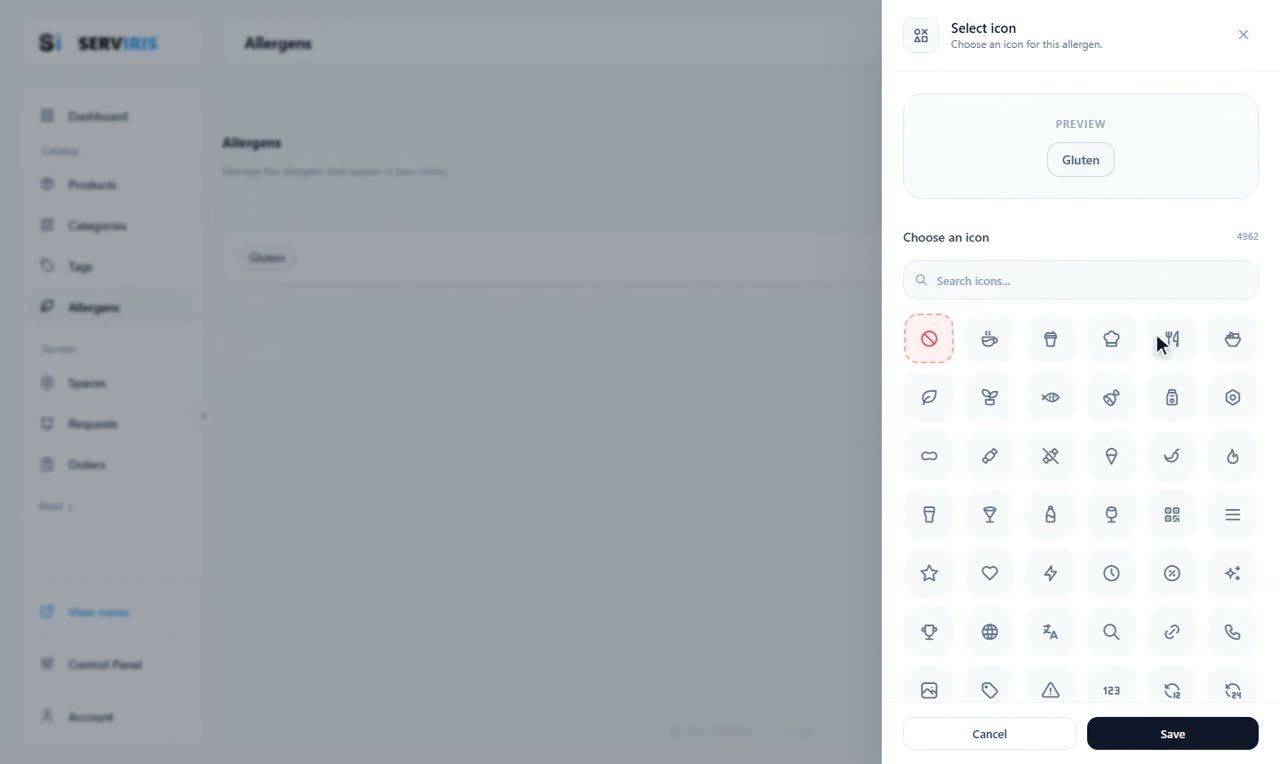
Search the full set — 4,962 icons: bread for gluten, a bottle for milk, a nut for tree nuts. A guest with an allergy scans the menu with their eyes; the icon has to stop them.
-
3
Colors: visible, not loud
Text, background, border — “Gluten” settles on amber: #B45309 on #FFFBEB with a #FDE68A border. Keep allergens discreet but unmistakable; they inform, they do not advertise.

-
4
The list takes shape
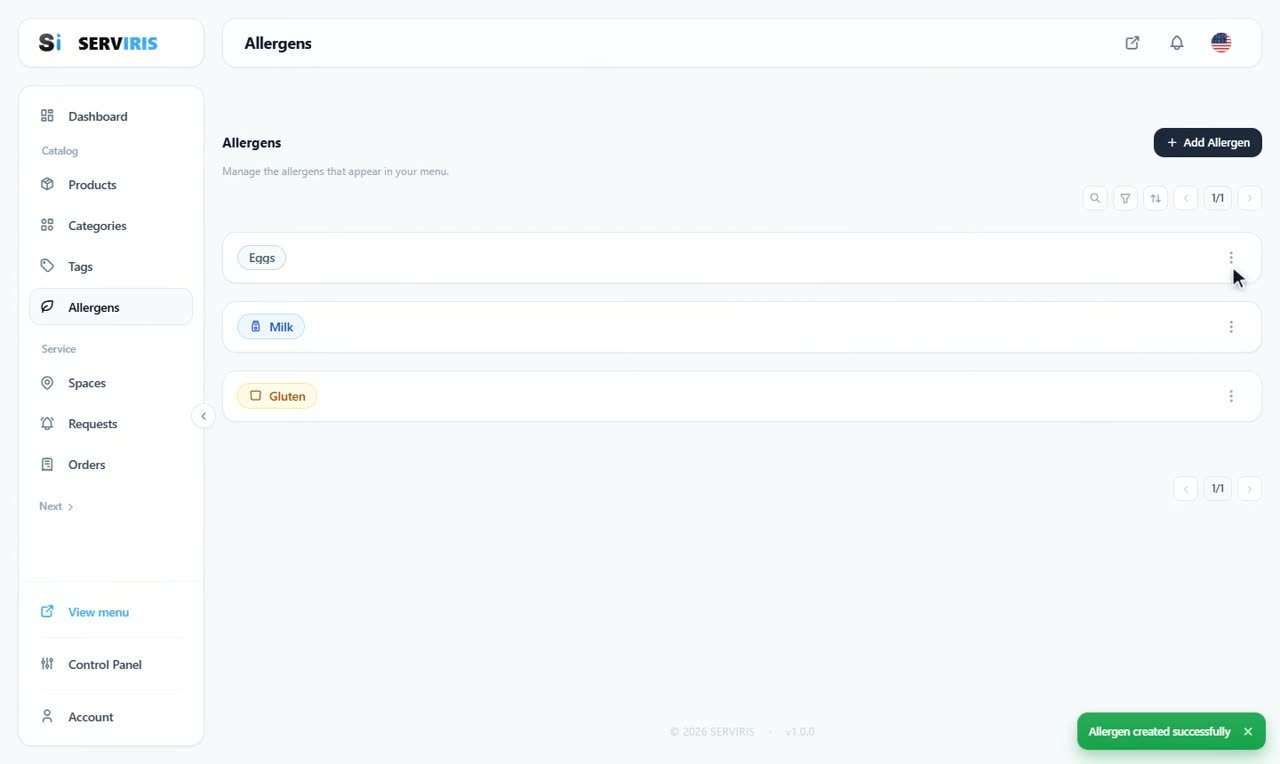
Eggs, Milk in blue with its bottle, Gluten in amber — each row shows its pill exactly as the menu will show it. The actions menu on the right edits any of them later.
-
5
The core set
Tree nuts, Eggs, Milk, Gluten — and “Fish” being typed: five allergens cover most of a menu. Tie them to products in the Products lesson and they appear automatically.

Good to know
Declaring allergens is mandatory in the EU — your menu solves it once, for good.