
Catalog Essentials
Products
The bread and butter of the menu: we create products with a name, description, price and photo, and tie them to a category, allergens and tags so the menu organizes itself.
All the points of the film 6 steps · 5:01
What you will learn
- Creating a product with a price and description
- Uploading an image that suits the dish
- Connecting to a category, allergens and tags
Step by step
-
1
The Products page
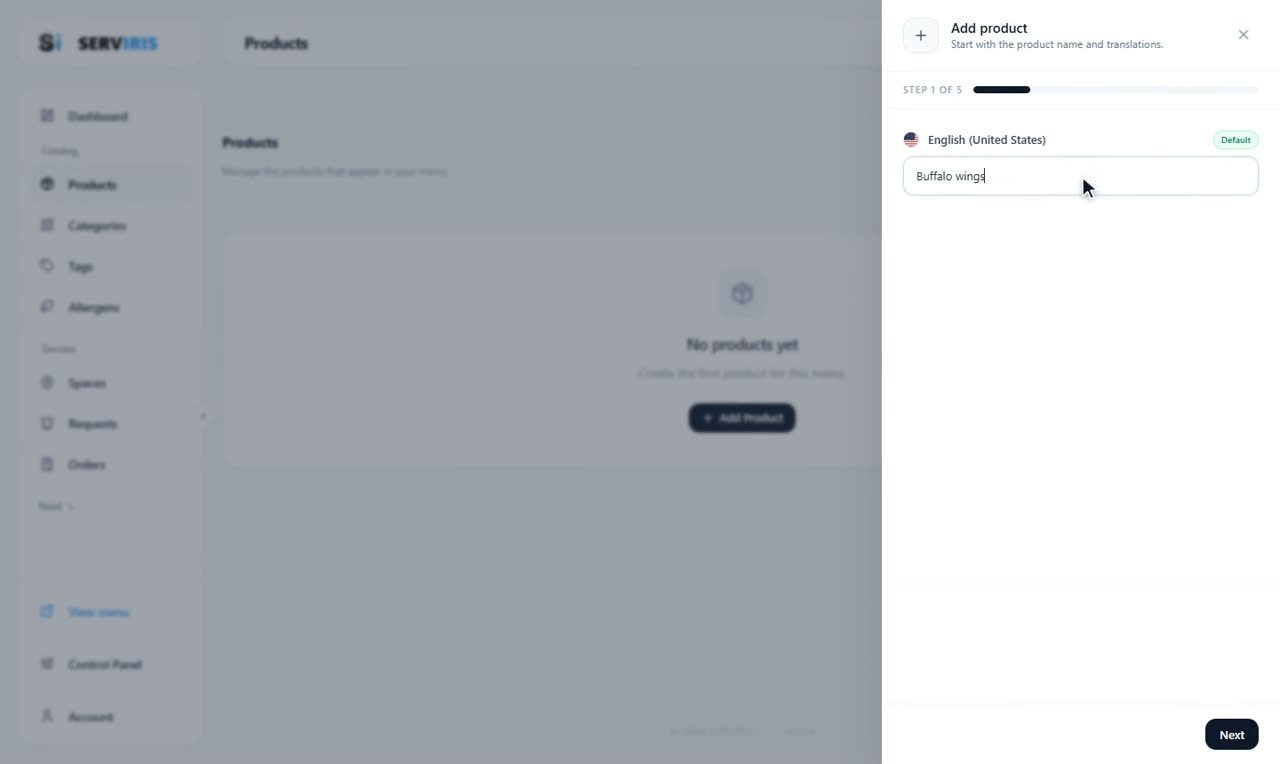
Left menu → Products. It starts empty — “+ Add Product” and nothing else — and the wizard opens on the name: “Buffalo wings”. Every product you make becomes a row here, with its image, price and badges.
-
2
Prices — as many as you need
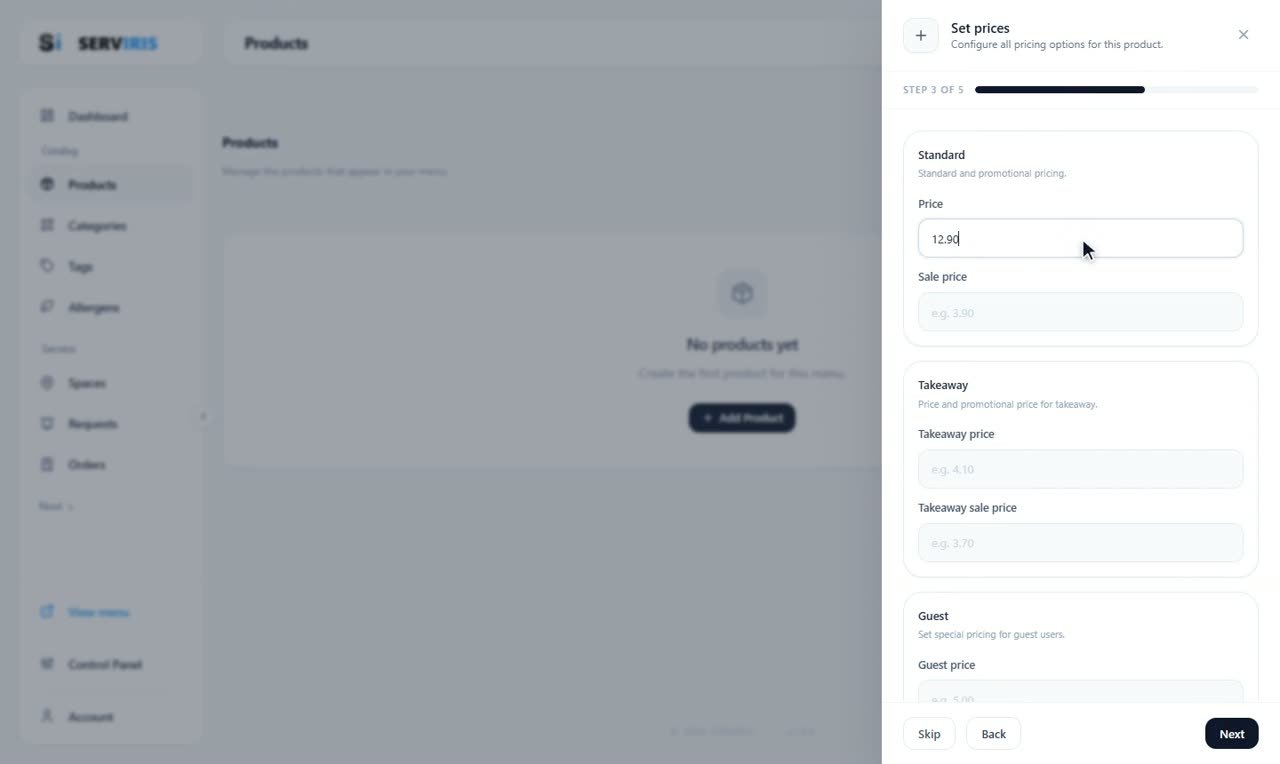
Step 3 sets the pricing: the standard price — 12.90 — with an optional sale price, and separate fields for takeaway and guest pricing. The currency and its format are set once, centrally, in Settings; here you type only the number.
-
3
Allergens from the product's list
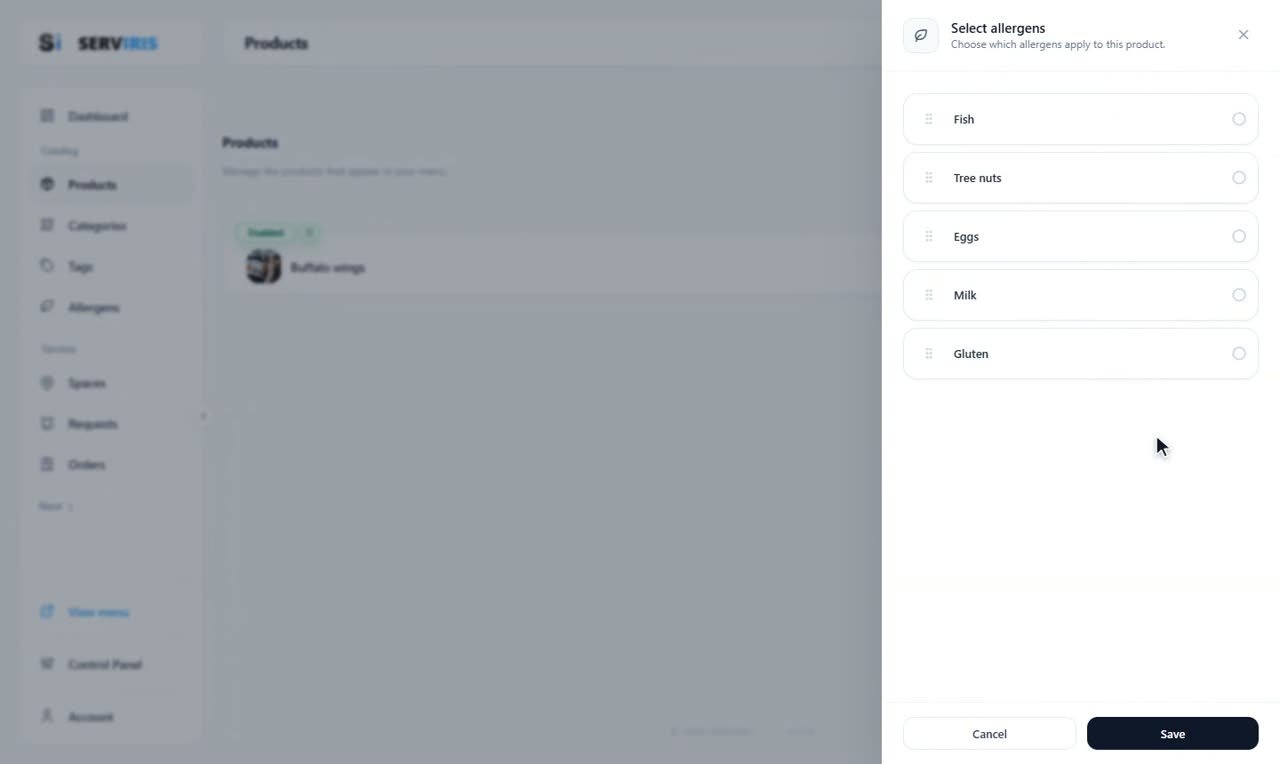
“Select allergens” opens the set you build in the Allergens lesson — Fish, Tree nuts, Eggs, Milk, Gluten. Check what the dish contains, press “Save”, and the warnings appear on its card in the menu automatically.
-
4
Status, and the product is born
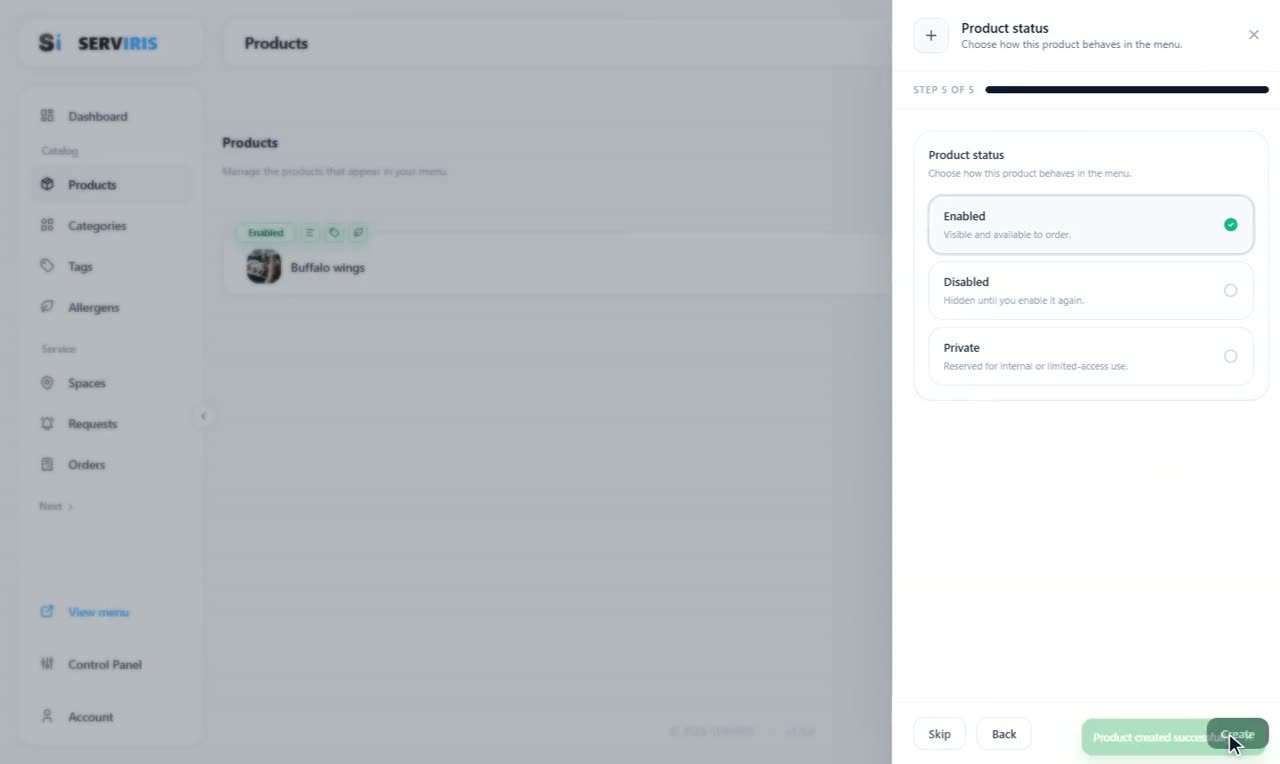
The last step is the product's status: Enabled — visible and available to order; Disabled — hidden until you enable it again; Private — for internal or limited-access use. “Create”, and the toast confirms it: product created successfully.
-
5
The list fills up
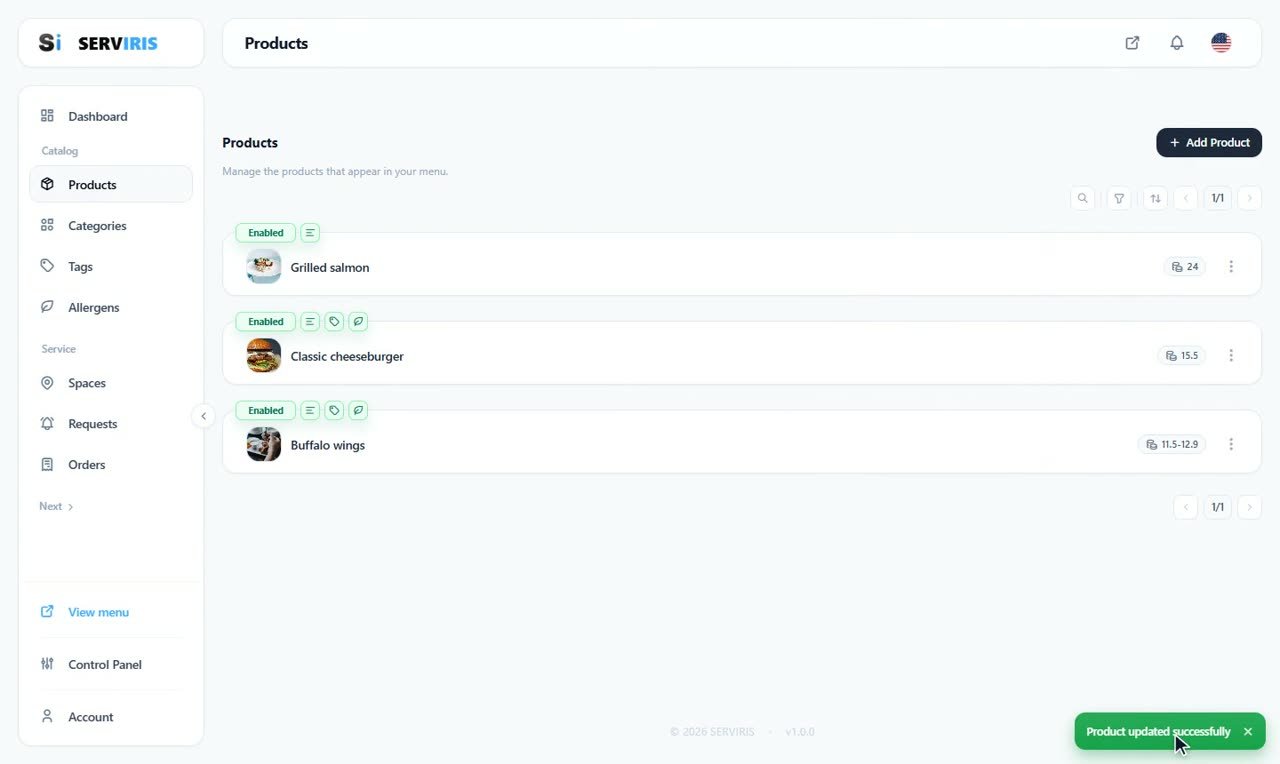
Grilled salmon at 24, Classic cheeseburger at 15.5, Buffalo wings at 11.5–12.9 — a sale price shows as a range. Each row carries its status and its relation badges, and the actions menu on the right edits any of it later.
-
6
Description — and the menu looks alive
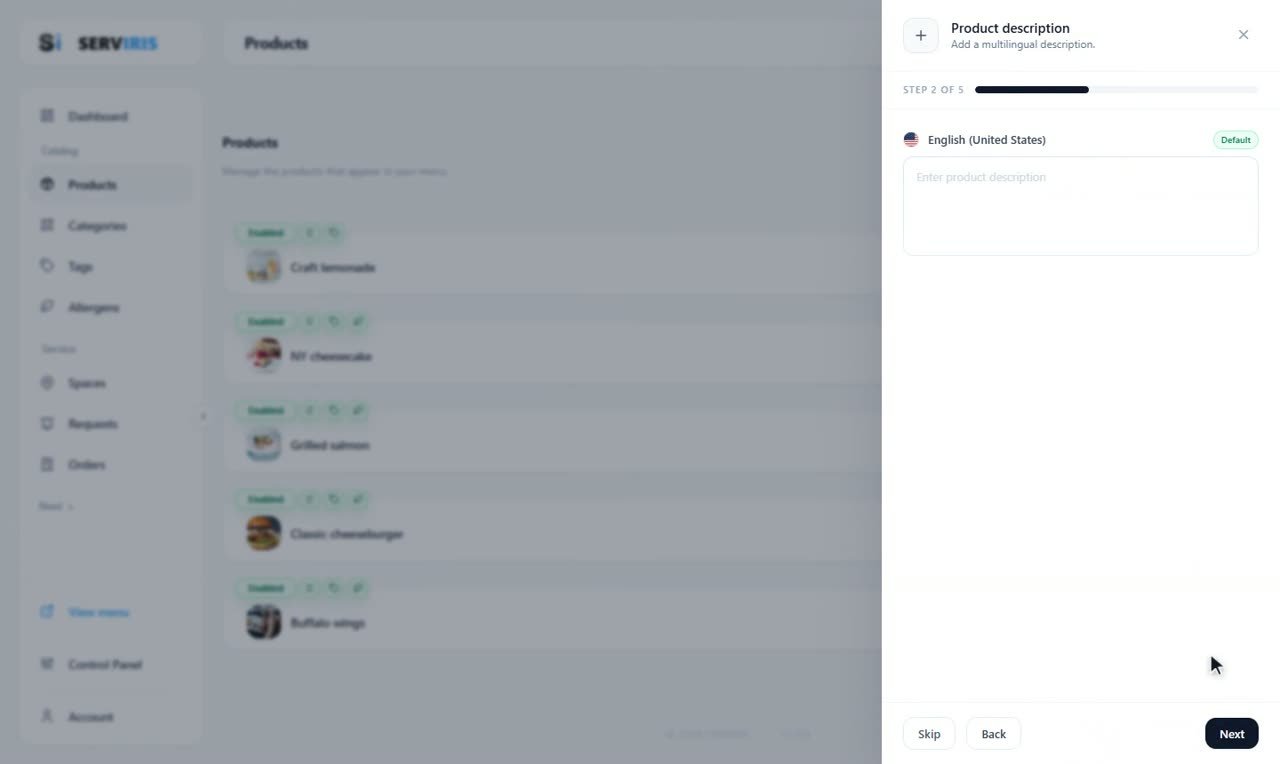
A short, warm description in the menu's language; translations come later, in the Settings lesson. With Craft lemonade, NY cheesecake, Grilled salmon, Classic cheeseburger and Buffalo wings in place, View menu already shows a real venue.
Good to know
Write descriptions the way you would say them at the table — short and appetizing.
Allergens are not decoration: fill them in correctly from day one; the law requires it too.