
Getting started Intro
Your first domain
The domain is the address your customers type — menu.serviris.com/your-place. One name, one click, and it is born.
All the points of the film 3 steps · 0:18
What you will learn
- What a domain is and how it becomes a menu address
- How to choose a good name (slug)
Step by step
-
1
New domain
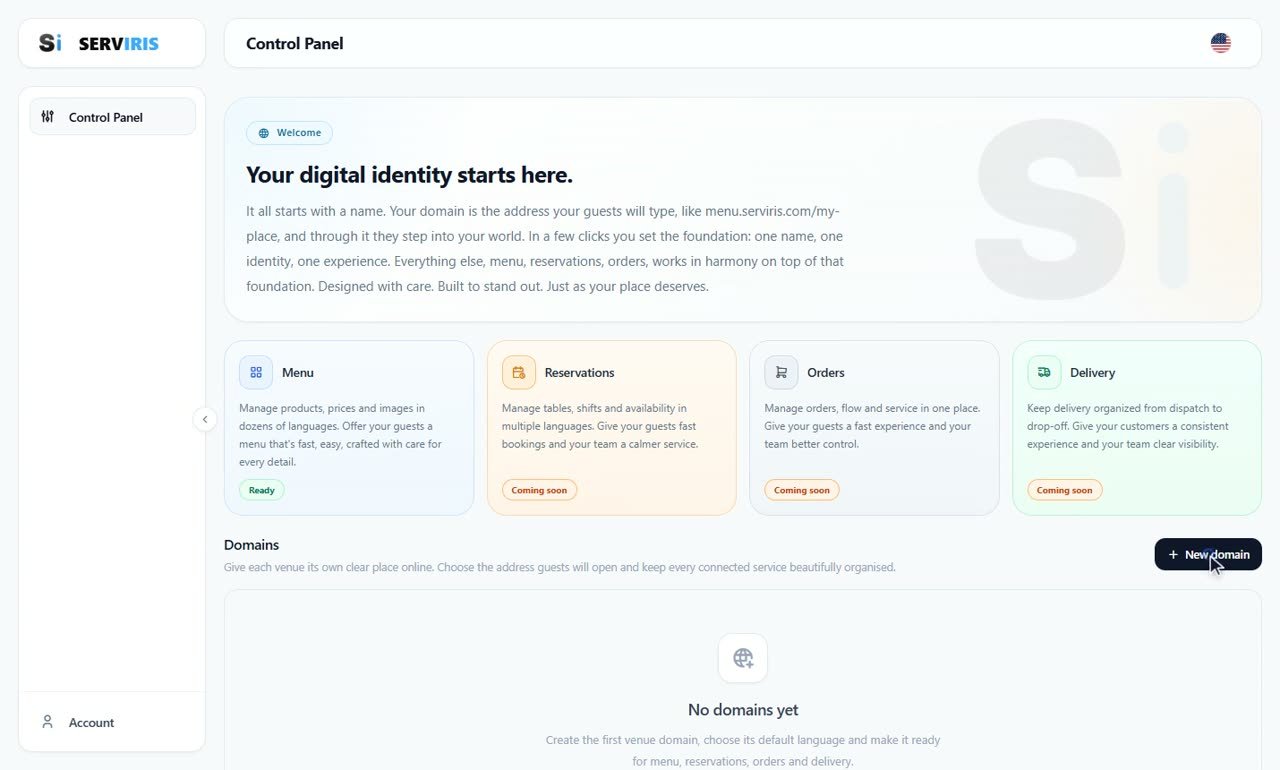
On the Control Panel press “+ New domain”, top right in the Domains section.
-
2
Give it a name
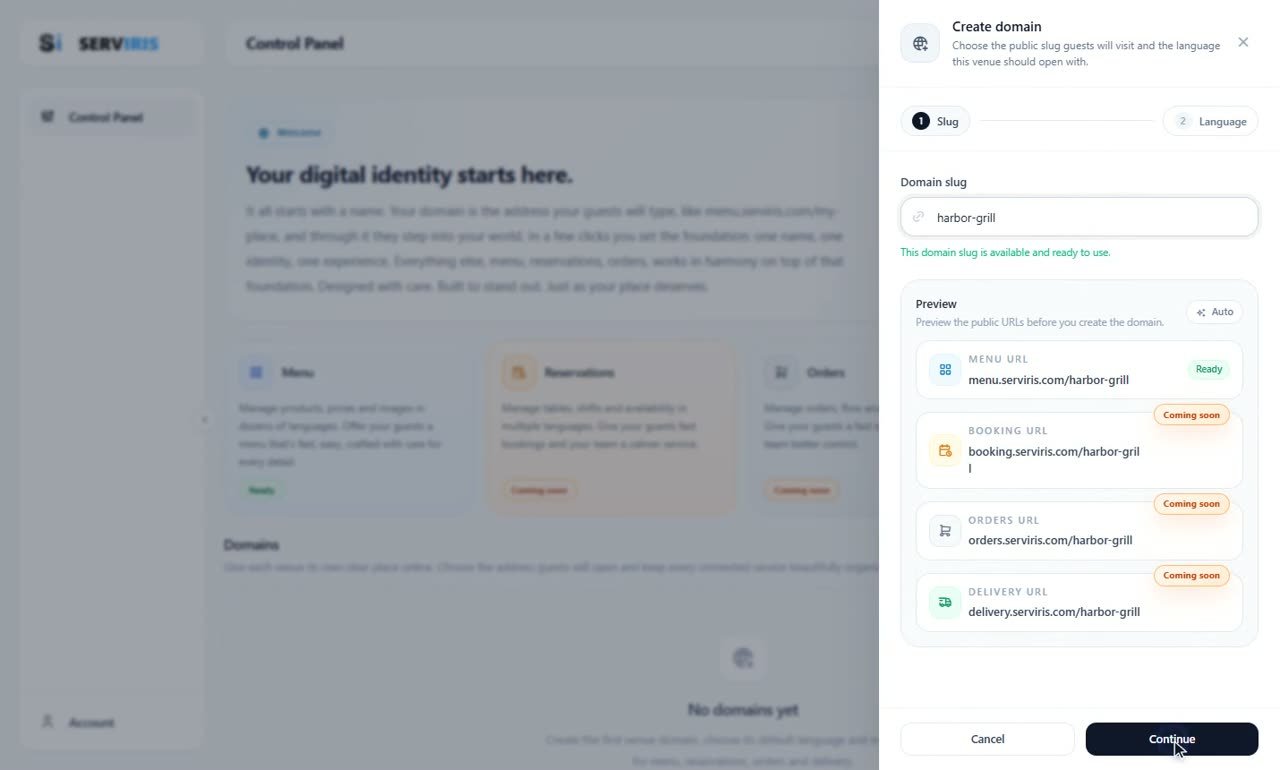
The name becomes the address: “harbor-grill” means menu.serviris.com/harbor-grill. The preview underneath shows every public URL before you commit, and the green line confirms the slug is available. Prefer lowercase with dashes — short, readable, easy to say over the phone.
-
3
Language and create
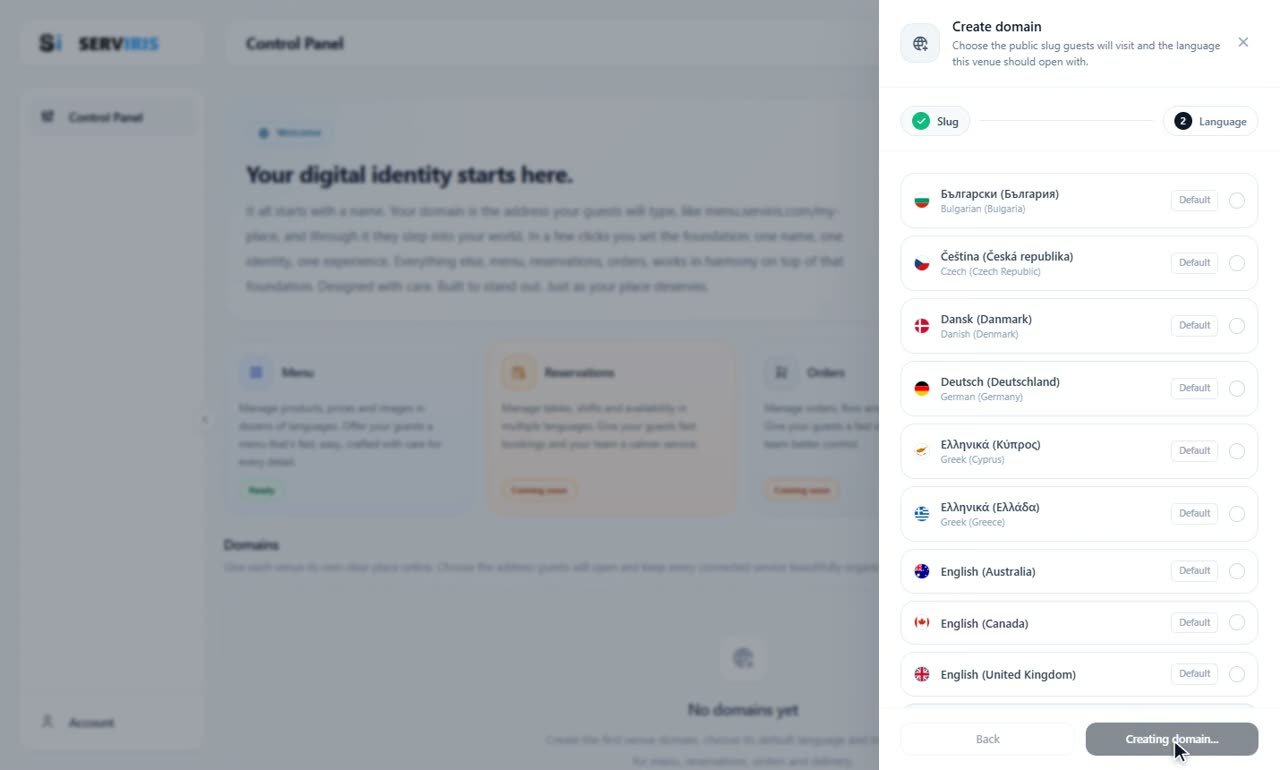
Step two of the wizard: pick the language this venue should open with, and create. The domain appears as a card on the Control Panel, ready to receive its first service: the digital menu.
Good to know
The slug ends up printed on QR codes and table cards — avoid anything that can change (years, temporary names).