
Catalogue Essentials
Categories and subcategories
Categories are the skeleton of the menu: Starters, Mains, Drinks. Here we build them with colours per device and a background image, and we show how one category nests inside another — Coffee under Drinks.
All the points of the film 6 steps · 5:08
What you will learn
- Creating a category with a name and description
- Title and text colours set separately for phone and desktop
- A background image that makes the category header rich
- Subcategories: drag one category inside another
Step by step
-
1
The Categories page
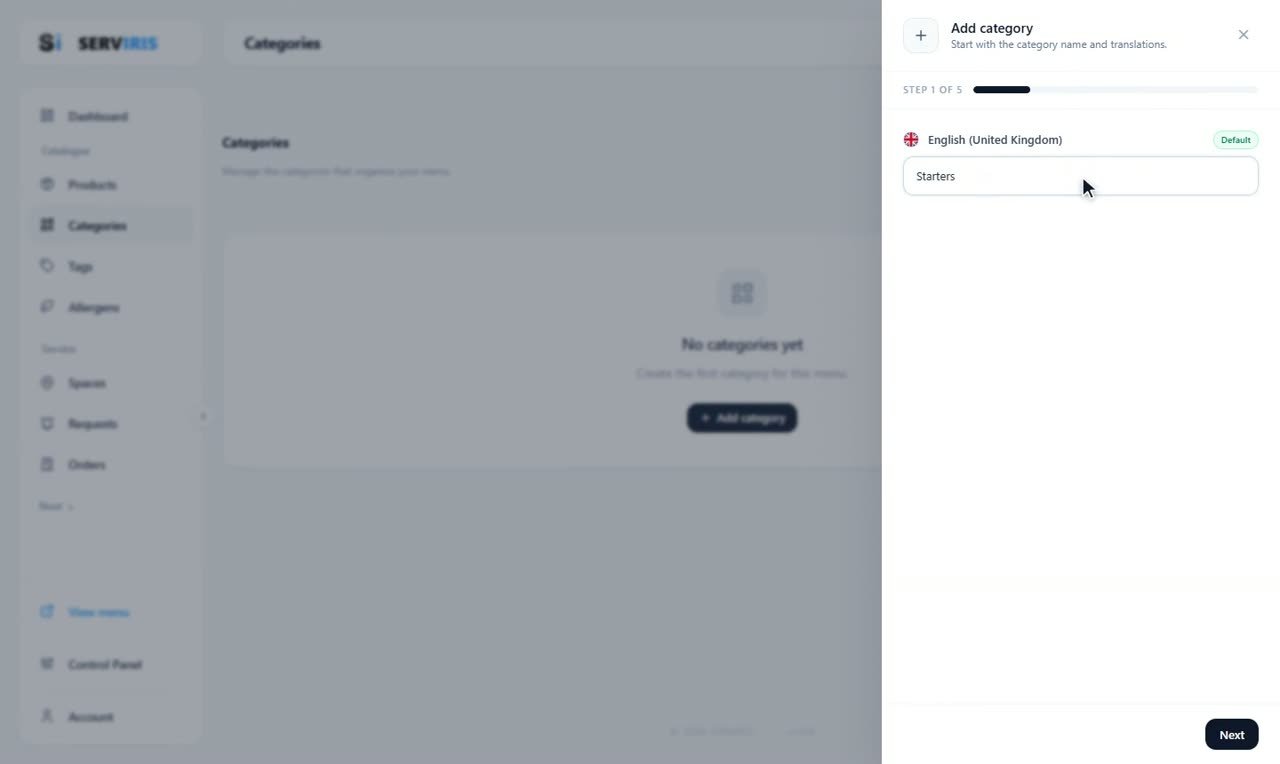
Left menu → Categories. It starts empty: “+ Add category” opens a five-step wizard, and the name comes first — “Starters”. Every category becomes a row on this page, and the order of the rows is the order on the menu.
-
2
A background for the header
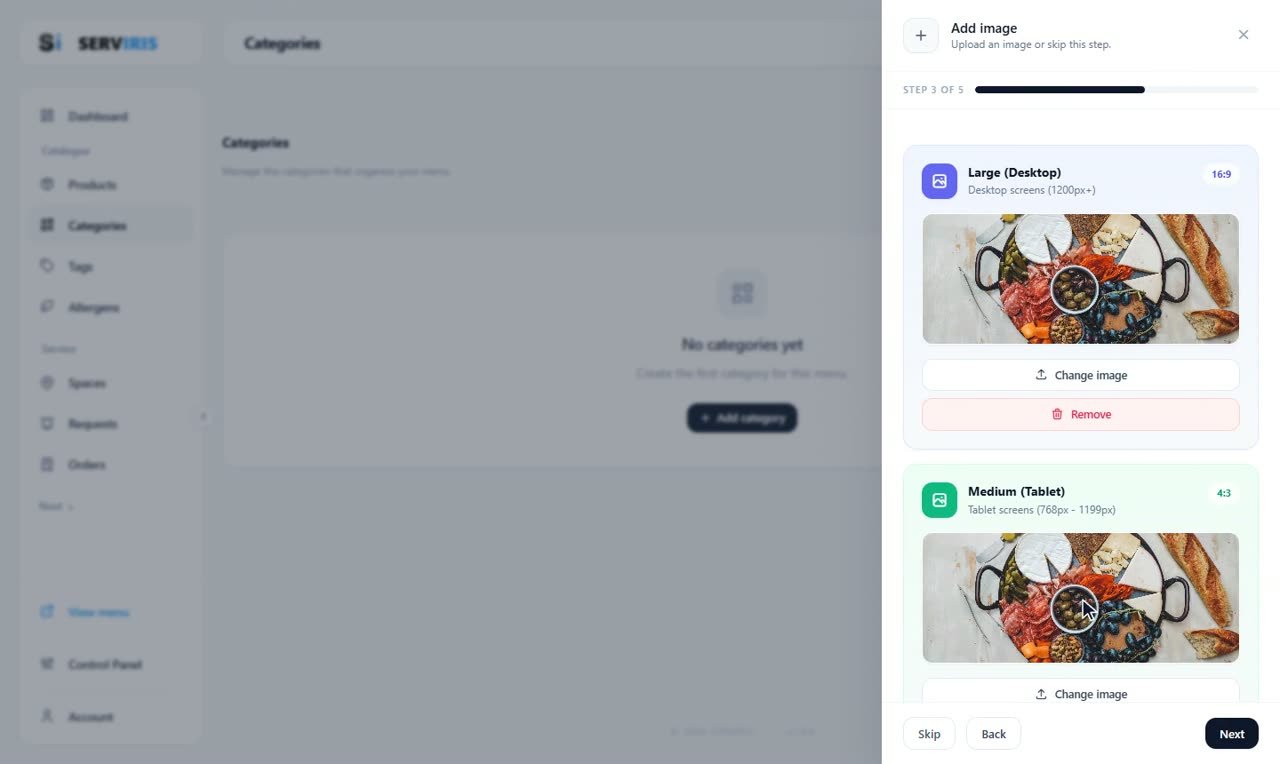
Step 3 of the wizard dresses the category's header: one image per screen size — Large (Desktop) in 16:9, Medium (Tablet) in 4:3. Choose photos with some air in them; the title sits on top, so busy shots make reading hard. “Change image” and “Remove” are right there if you rethink.
-
3
Colours per device
Step 4, and appearance works per device: Large, Medium, Small — each with its own text, description and background colour. Here the Medium tab paints “Starters — Small plates to share” white on warm brown with an amber underline, and the preview repaints on every change. A background that reads beautifully on a big screen may want bolder text on the phone.

-
4
And the next one
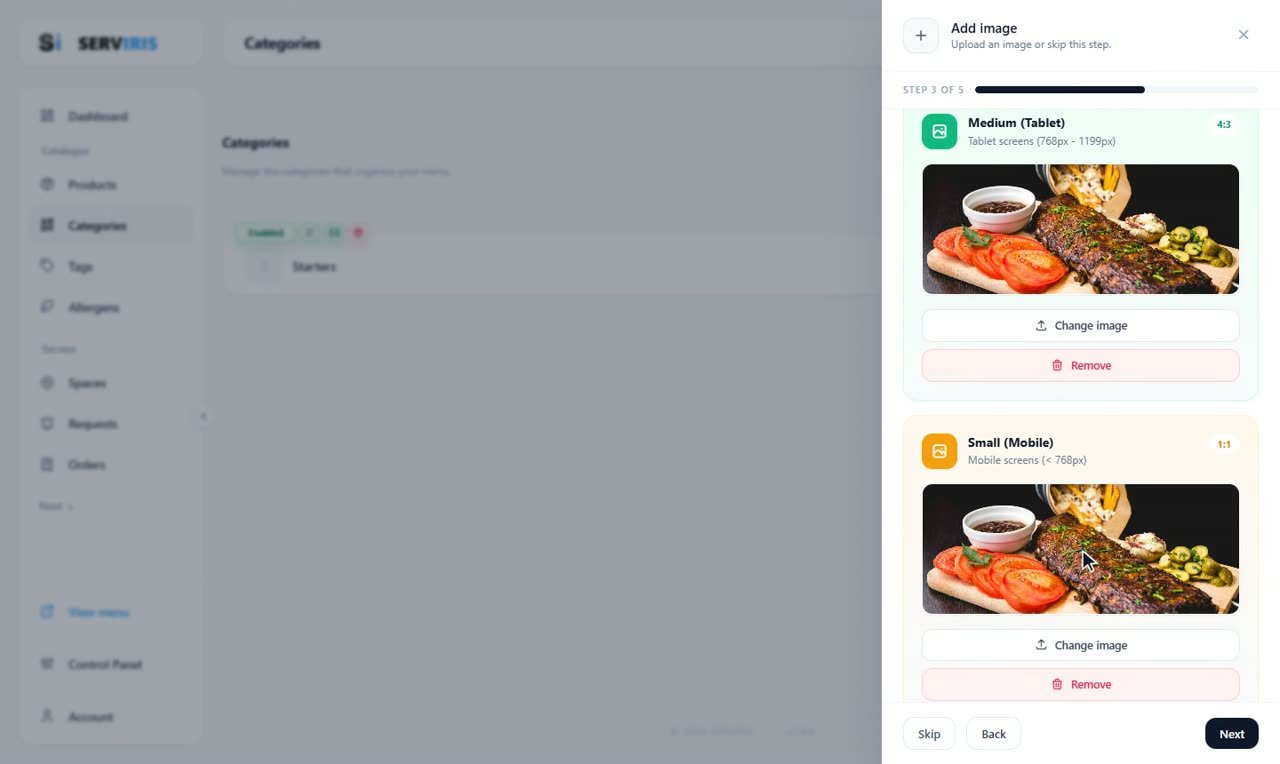
The second category walks the same five steps — here at its images, the Tablet and Mobile slots both dressed, “Change image” and “Remove” on call. Mains, Desserts, Drinks, Coffee: the whole skeleton is built the same way.
-
5
Every category, its own palette
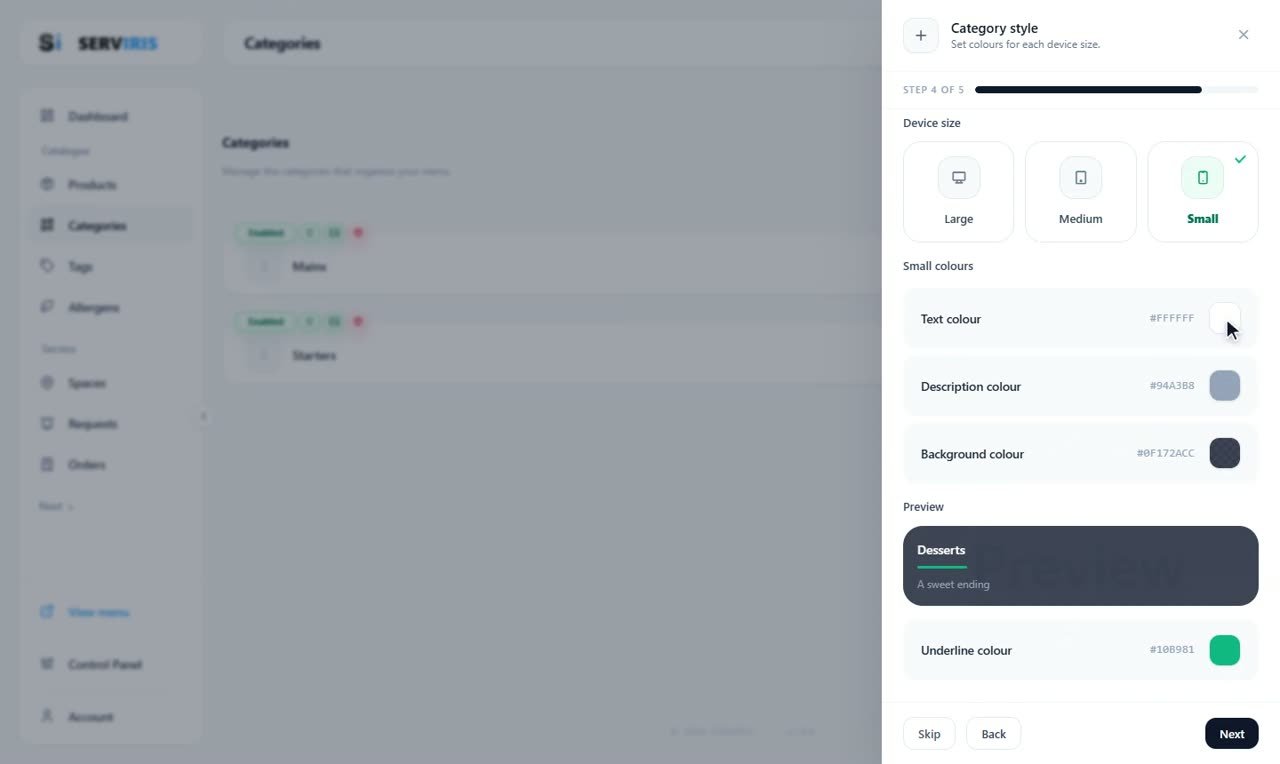
“Desserts — A sweet ending” goes deep slate with a green underline this time, the Small tab tuning how phones will see it. Each category can wear its own palette, so sections feel distinct as guests scroll.
-
6
A subcategory with one drag
Grab “Coffee” and drop it onto “Drinks”: it becomes a subcategory. On the menu, guests will see Drinks open up with Coffee living inside it. The same drag also reorders the list — the order here is the order they see.

Good to know
Few, clear categories always win: 5–7 main ones is the rule of good menus.
The description is room for voice: “Cocktails, wine and soft drinks” says more than a bare “Drinks”.