
People Advanced
Guests: private access for hotels
For hotels and closed venues: guest groups (Half Board, All Inclusive), accounts with a stay window, and the guest who signs in to the menu with his own credentials and orders — the order landing on his card.
All the points of the film 8 steps · 7:32
What you will learn
- Guest groups in 4 steps, with icon search and colors
- Creating a guest: identity, login, stay, group, status
- Filters, sorting, and each guest's permissions
- The guest's experience: signing in to the menu and ordering
- The guest's orders on their card, and the owed badge
Step by step
-
1
The Groups tab
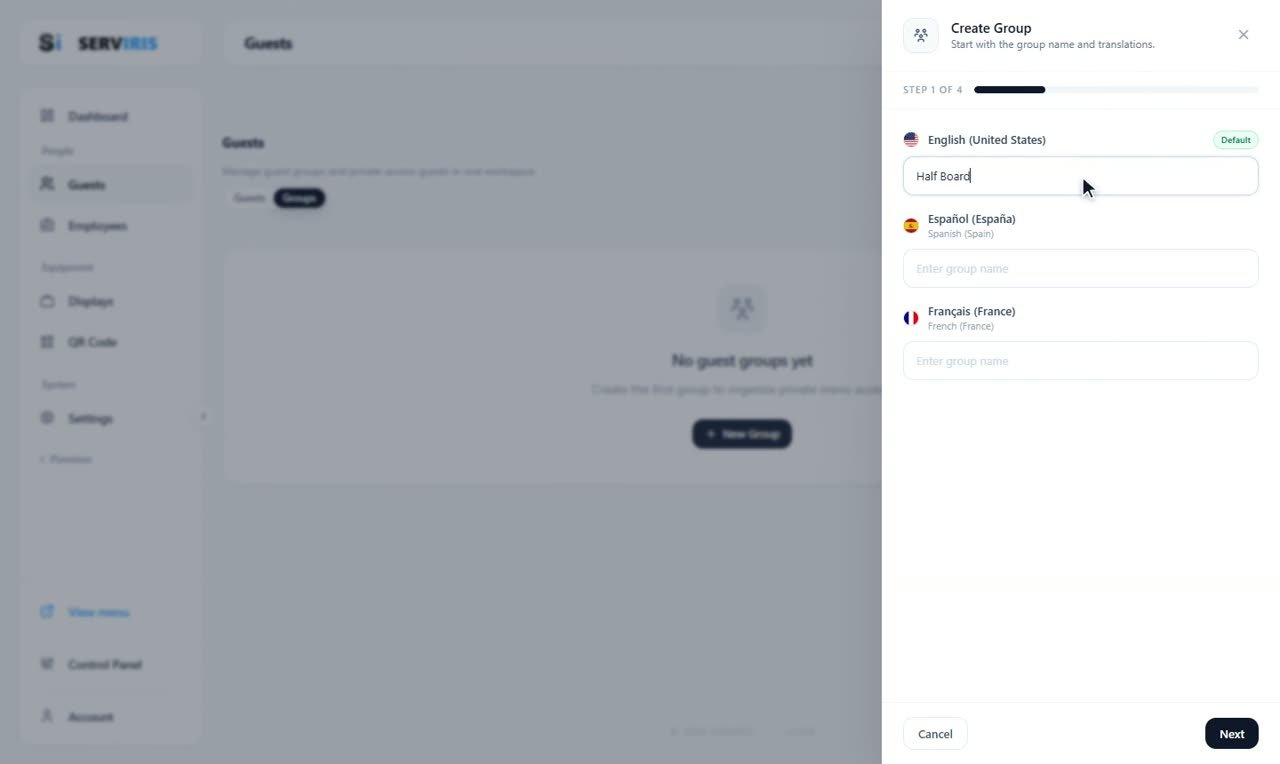
Left menu (second page) → Guests → the “Groups” tab. Groups are the hotel's packages — what each guest is entitled to. “Create Group” opens on the name, with a field for every language: “Half Board”.
-
2
An icon from the full catalog, and colors
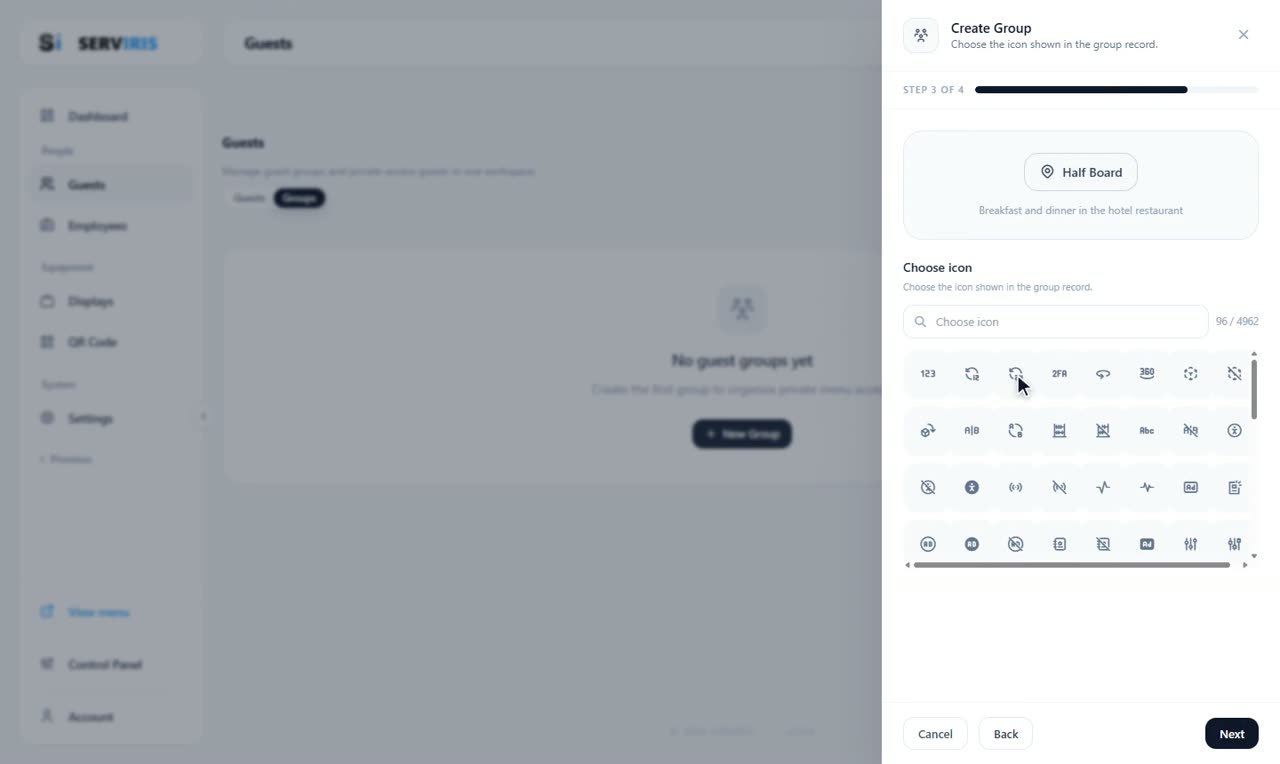
Step 3 is the icon — the search combs the same 4,962-icon catalog — with the preview already reading “Half Board — Breakfast and dinner in the hotel restaurant”. Colors follow, and “All Inclusive” is built the same way.
-
3
A new guest: identity first
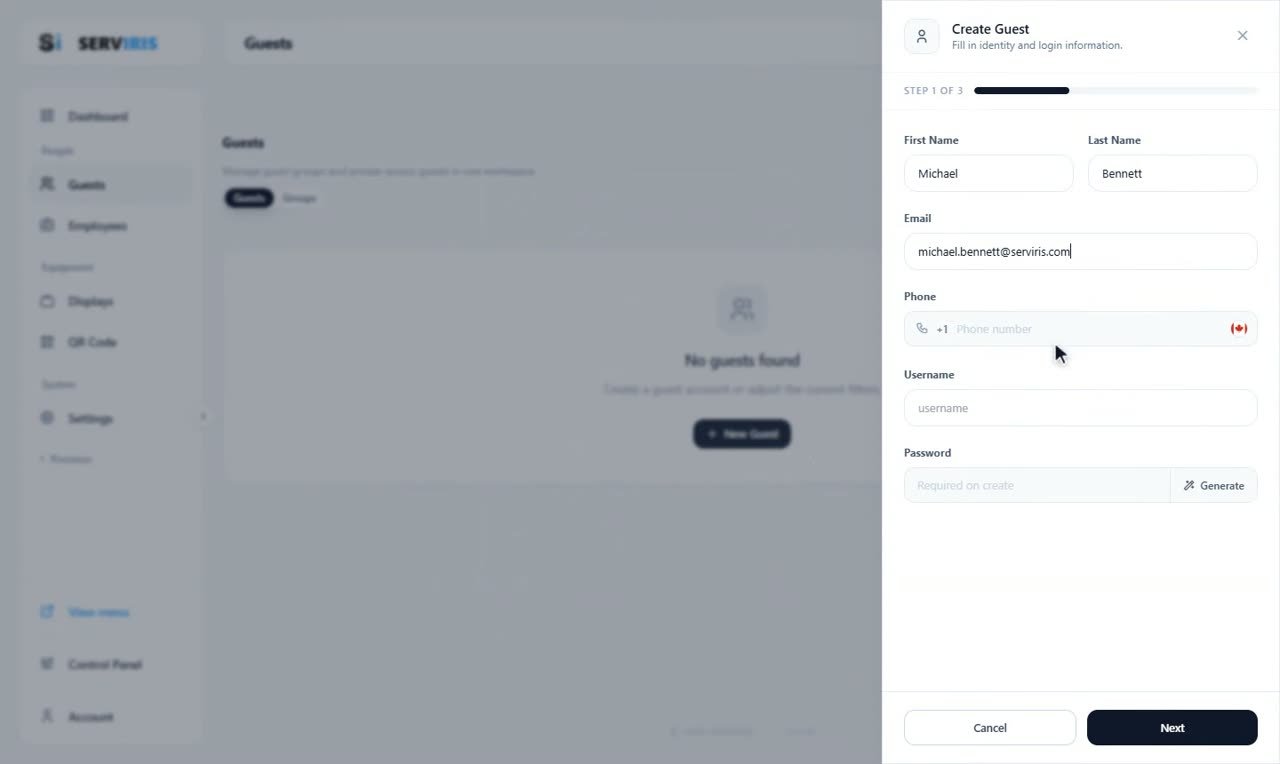
The “Guests” tab → “New Guest”. First name, last name, email — Michael Bennett — the phone with its country code behind the flag, and the login pair: username and password, with a “Generate” button doing the honors.
-
4
The stay
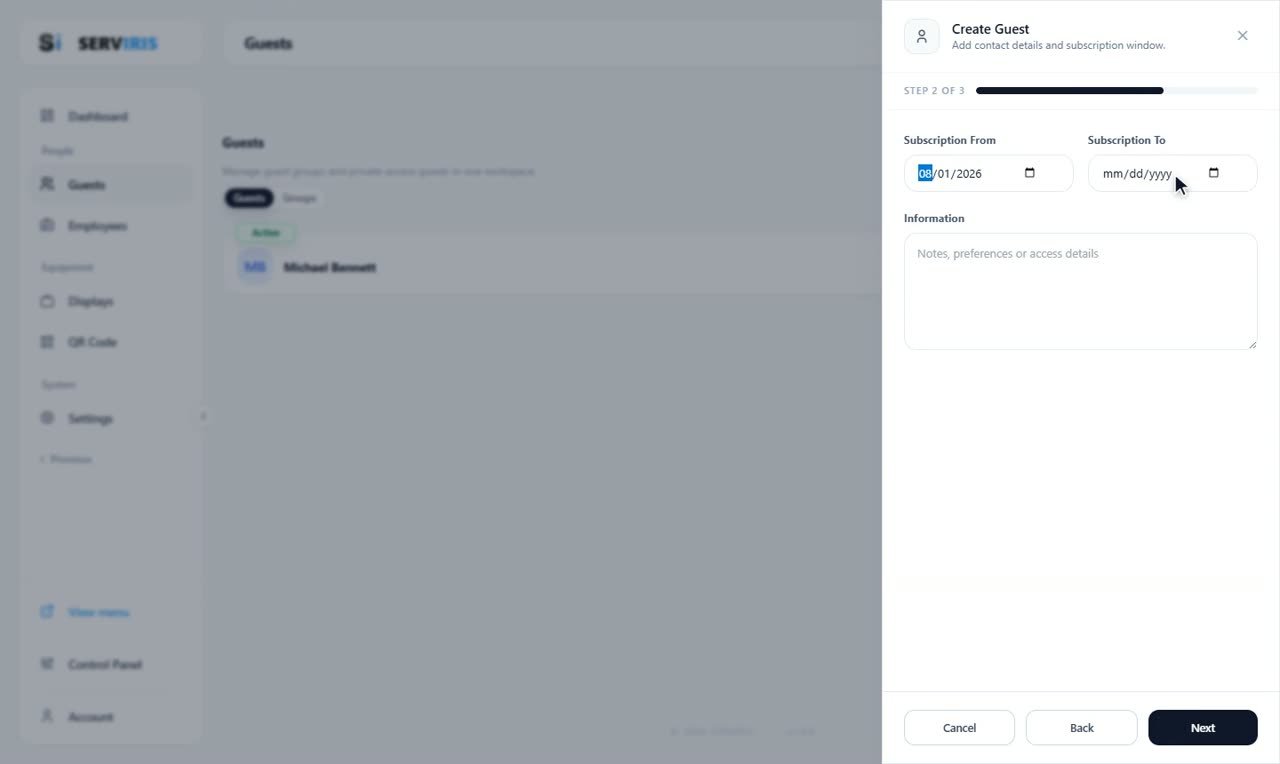
Step 2 is the subscription window — from 08/01/2026, to whenever the stay ends — and the free-text Information: notes, preferences, the room.
-
5
Group, status, create
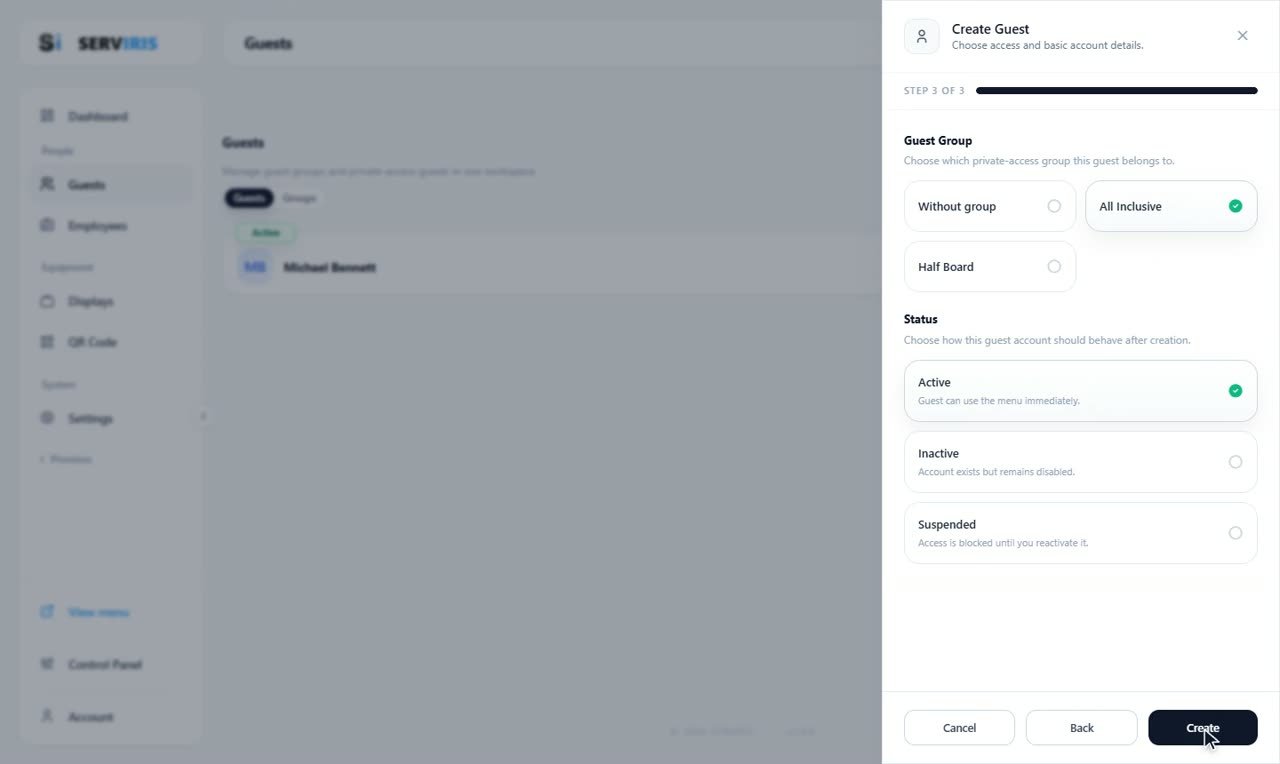
Step 3 assigns the package — Without group, All Inclusive, Half Board — and the status: Active, the guest can use the menu immediately; Inactive; Suspended, access blocked until you reactivate it. “Create”.
-
6
Three guests in
Laura Whitfield and James Carter follow the same three steps — a fresh form each time, the flag remembering its country. Three guests on the list, each wearing Active.

-
7
Permissions per guest
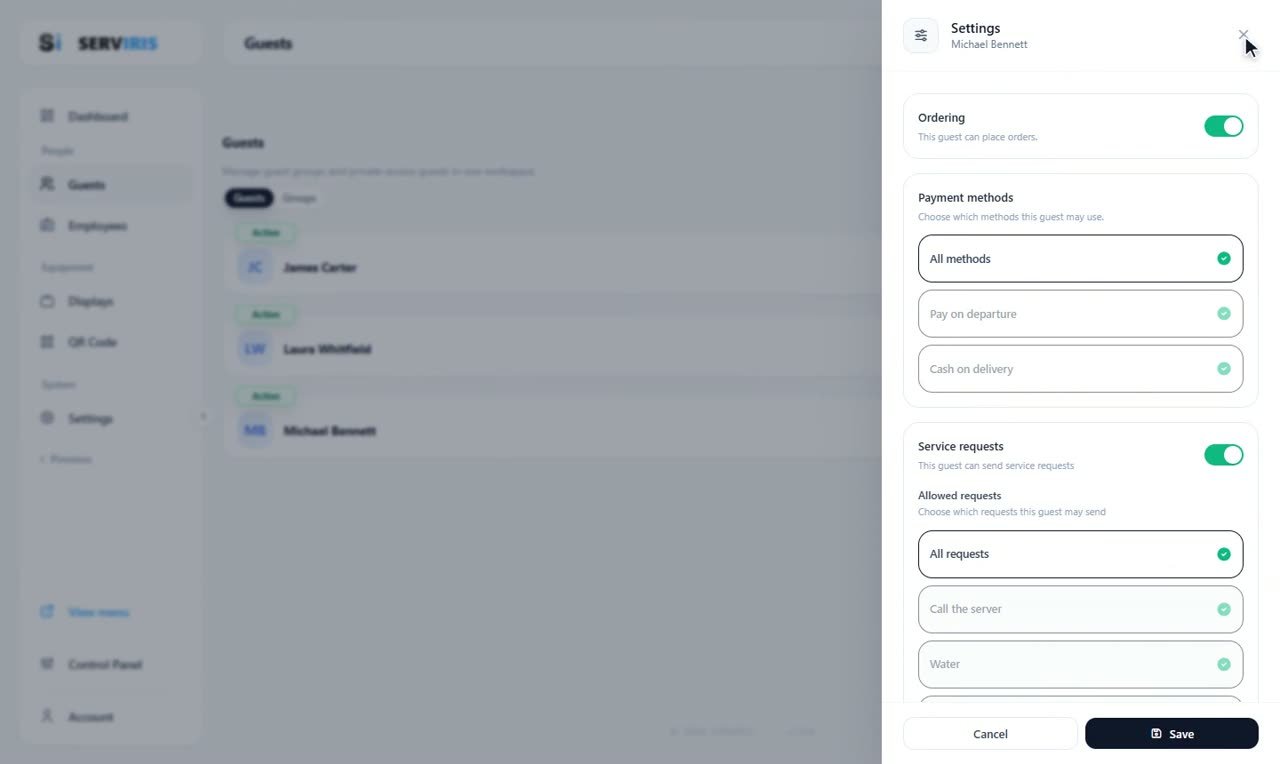
Each row's “Settings” decides what Michael may do: Ordering on, the payment methods — all of them, or specifically Pay on departure / Cash on delivery — and which service requests reach him: all, or a chosen few. Save.
-
8
His order, on his card
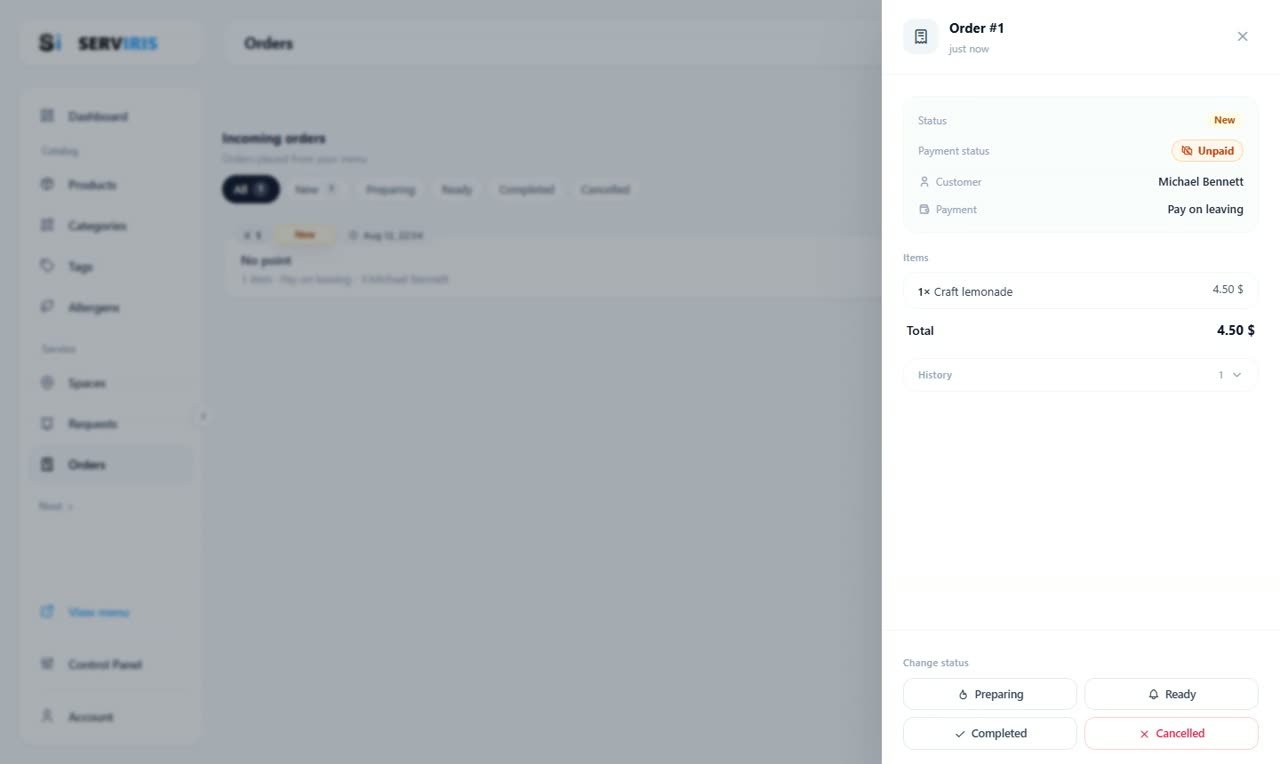
Michael signed in to the menu with his own credentials and ordered a Craft lemonade. Order #1 names him — Customer: Michael Bennett, Pay on leaving, no table: the order belongs to the person, and his card will carry what he owes.
Good to know
Enable ordering for signed-in guests in Settings — so only your own guests can order.
The subscription dates cut access off by themselves when the stay ends.