
Service Essentials
Spaces and their QR codes
Every table, terrace or room becomes a “space” with its own QR. The guest scans; the venue knows where the order came from. We build groups and spaces, and open each one's QR.
All the points of the film 5 steps · 3:01
What you will learn
- Space groups (e.g. Indoor, Terrace) and the spaces inside them
- The space's slug — the address of its own QR
- Each space's actions menu, with its QR code
Step by step
-
1
The Spaces page
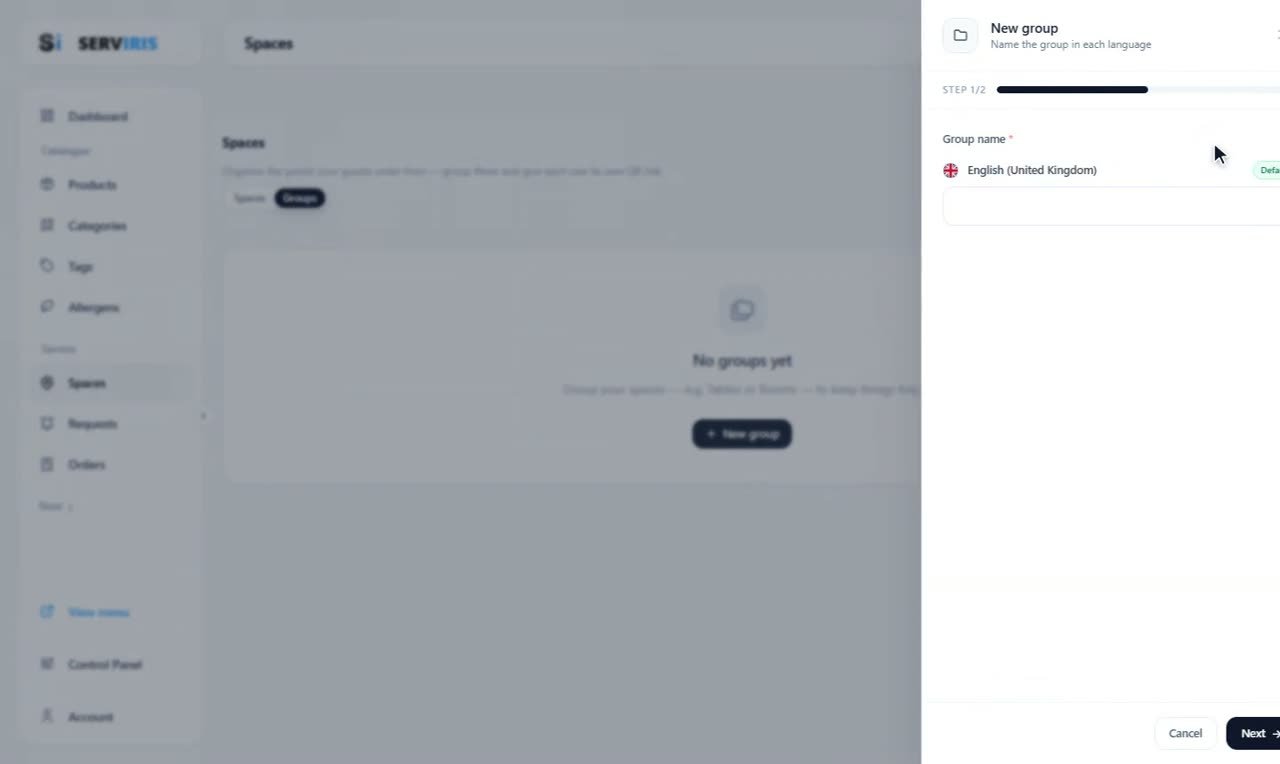
Left menu → Spaces. Two tabs — Spaces and Groups — because spaces live in groups, like the dining room and the terrace of one venue. “+ New group” opens a two-step wizard: the name, in each language — “Indoor”.
-
2
A group with a description
Step 2 is the optional description — “Tables inside the dining room”. Save; groups keep the list tidy as the spaces multiply.

-
3
A space, standalone or grouped
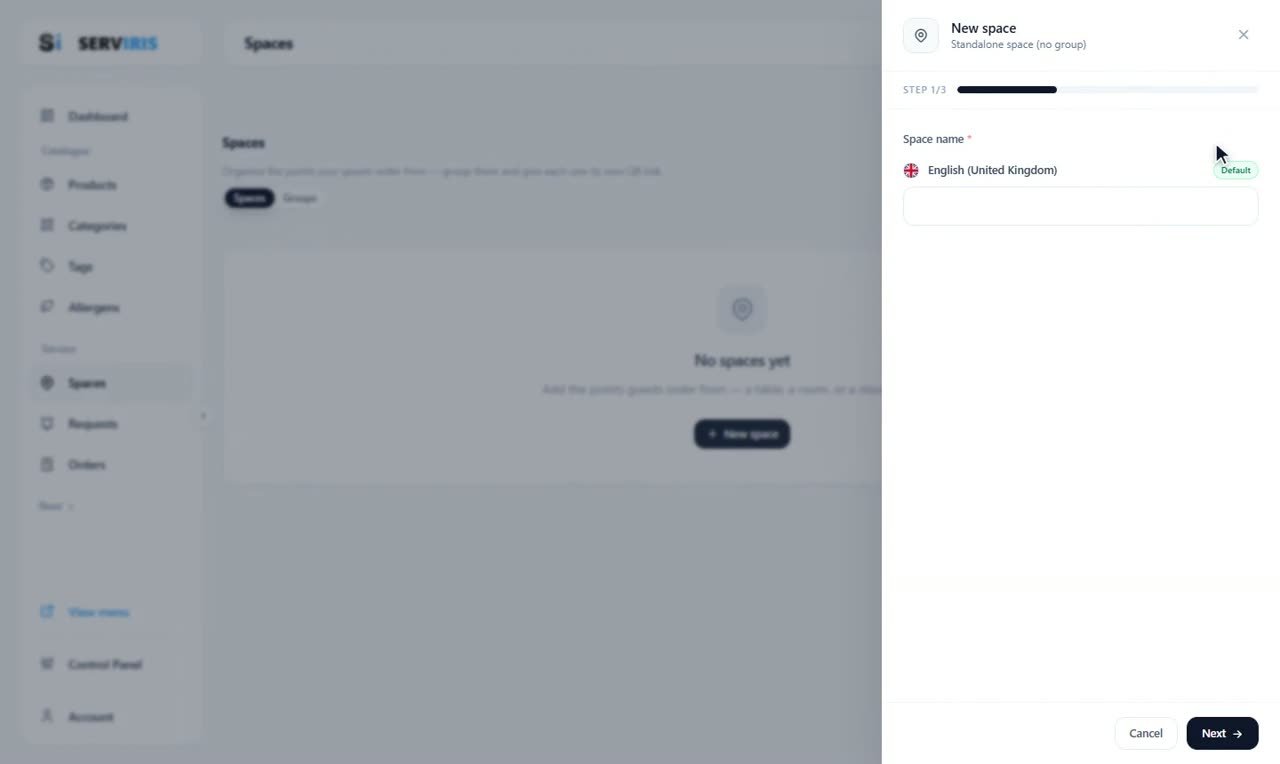
Over on the Spaces tab, “+ New space” opens its own three-step wizard, starting standalone (no group). The name — “Table 1” — and the slug suggests itself from whatever you type, ready to become part of the QR's address.
-
4
The floor plan fills in
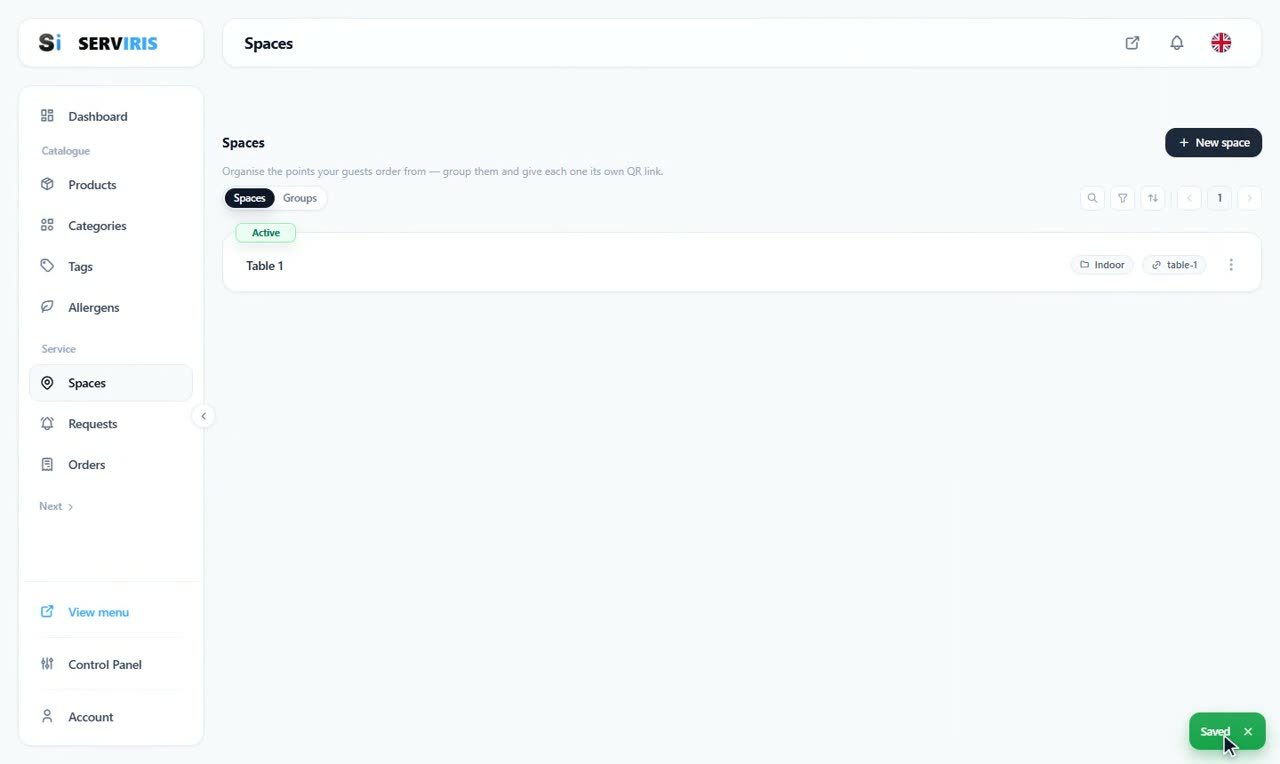
“Table 1” takes its place: Active, in the Indoor group, its slug — table-1 — right on the row. Table 2 joins the same way, Terrace 1 and 2 get their own group, the Bar stands alone. Five spaces, two groups, a realistic little venue.
-
5
The QR of the space
In each space's actions menu lives its QR Code: the address is honest — menu.serviris.com/the-oak-tavern/order-point/table-1 — with download as PNG or JPEG in three sizes, and four dot styles to pick from. Every table gets its own code, so each order arrives carrying the table's identity.

Good to know
Slugs happily accept any alphabet — Greek, Cyrillic and friends included.
Print the QRs on laminated cards, one per table — the QR Code lesson shows how to dress them in your colours.