
Equipment Advanced
Kitchen and bar displays
One order, two stations: the kitchen sees the dish, the bar sees the drink. We create the two displays with their own sign-ins, share the products between them, send an order, and work the tickets at each station.
All the points of the film 9 steps · 5:00
What you will learn
- Creating a display with a name, description and its own sign-in
- Routing: which products send orders to each display
- The display at work: tabs, clock, refresh, today, date range
- Expo view: the whole order, not just the station
- Moving a ticket along: the kitchen starts, the bar finishes
Step by step
-
1
How they work
Left menu → Displays → “How it works”: four steps on one card — create a display with its own username and password, choose its products, sign in on the station's tablet at the address shown, work the orders. The screen signs in with its own credentials, separate from your account.

-
2
The “Kitchen”
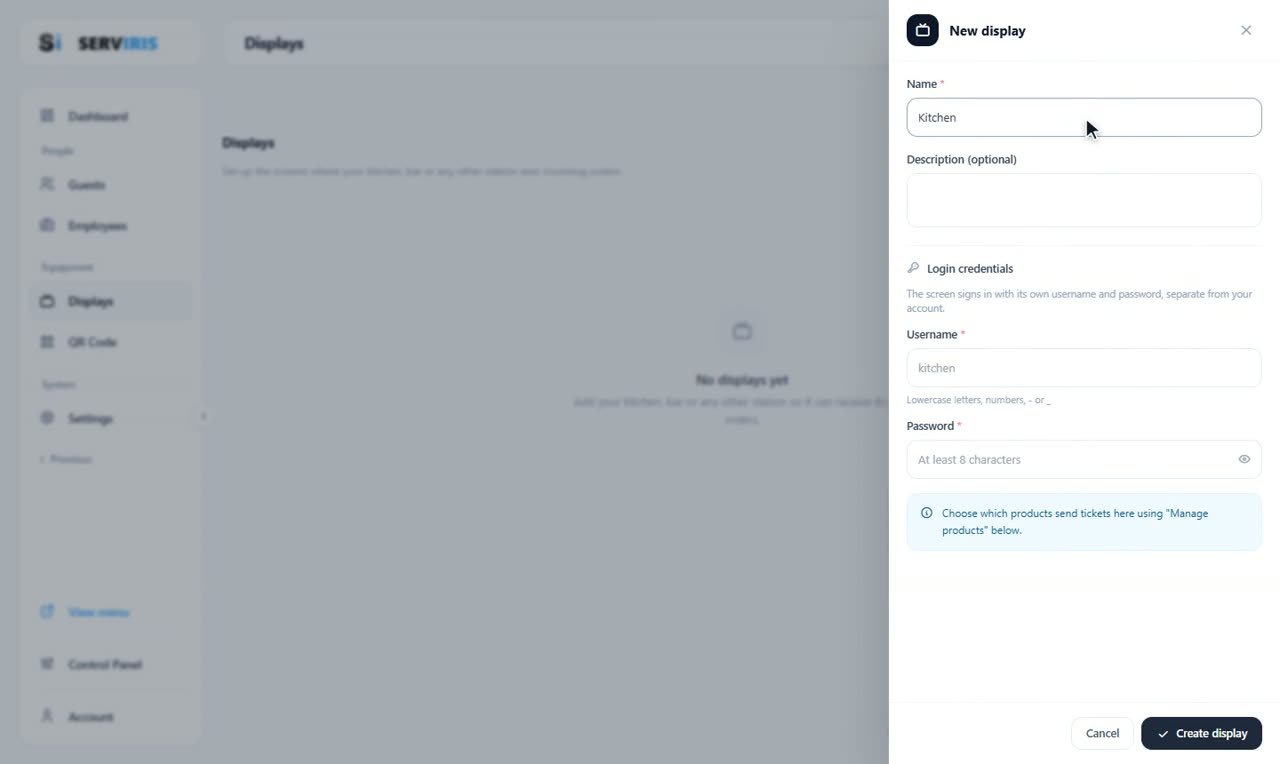
“+ New display”: name, optional description, and its login credentials — username “kitchen”, lowercase; a password of at least 8 characters, the eye there to reveal it. “Create display”.
-
3
And the “Bar”
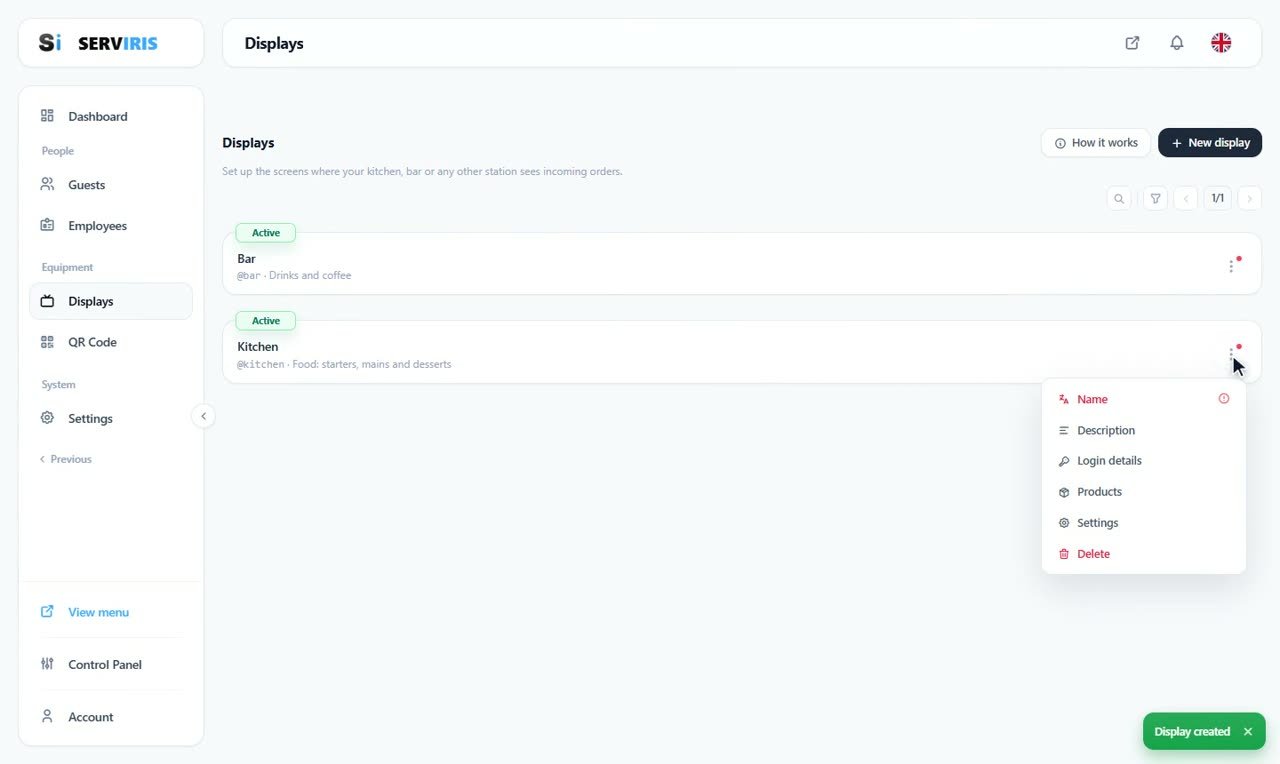
Second display, “bar”. Two stations, two sign-ins, zero shared passwords. Each row's menu holds everything else: Name, Description, Login details, Products, Settings, Delete.
-
4
Routing the products
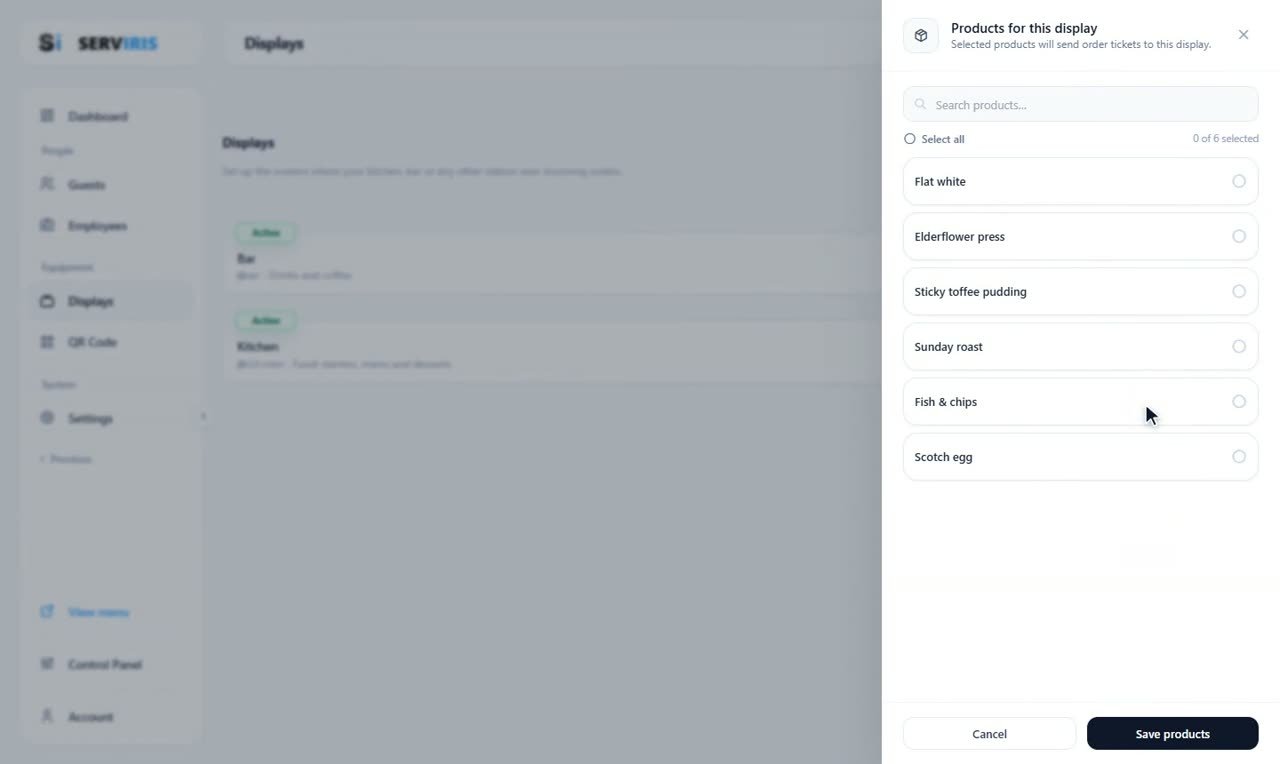
From the row's menu → “Products”: tick what the station prepares — selected products send their order tickets to this display. “Select all” and the counter — “0 of 6 selected” — sit above the list; the search narrows it.
-
5
Two stations, divided fairly
The kitchen takes the food — 4 products; the bar takes drinks and coffee — 2. The counts sit right on the rows — @kitchen · Food: starters, mains and desserts; @bar · Drinks and coffee — and “Display updated” confirms each save.

-
6
One order with two fates
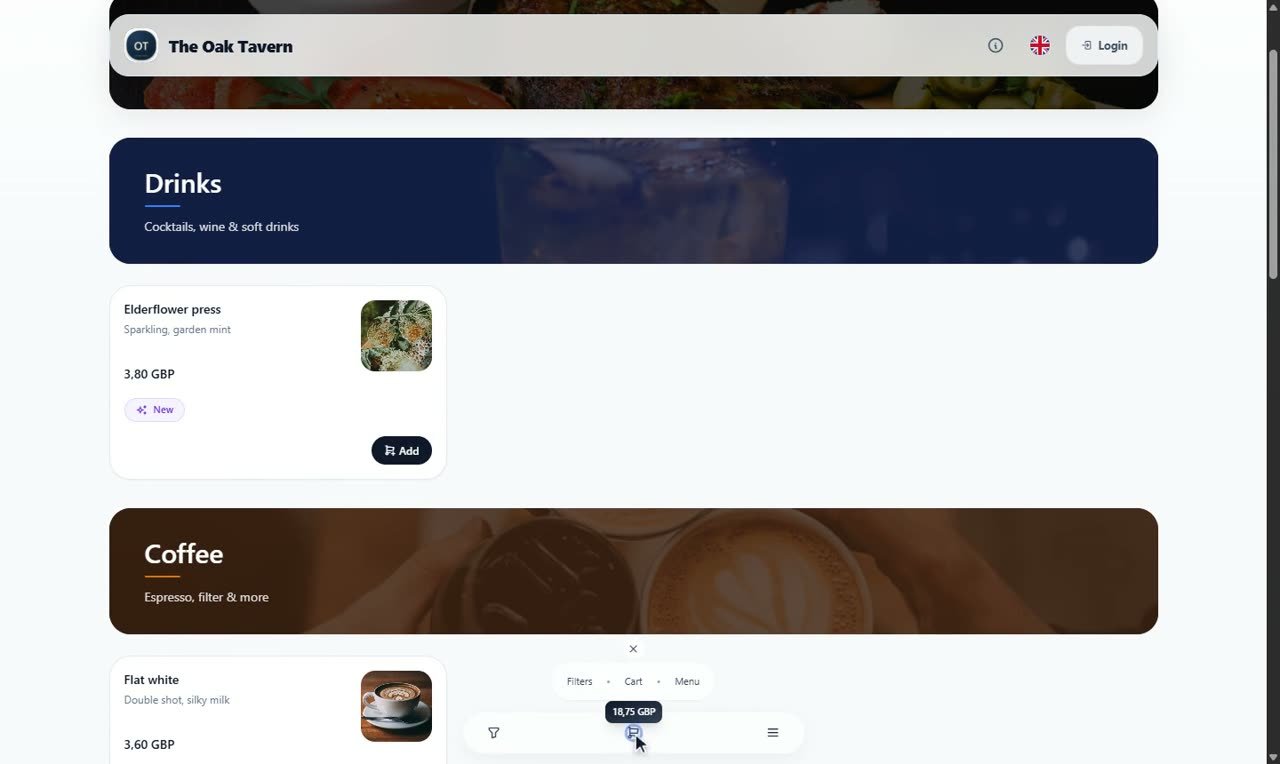
From the public menu: a Fish & chips and an Elderflower press in one basket — 18,75 GBP. One order, about to be split.
-
7
The kitchen's screen
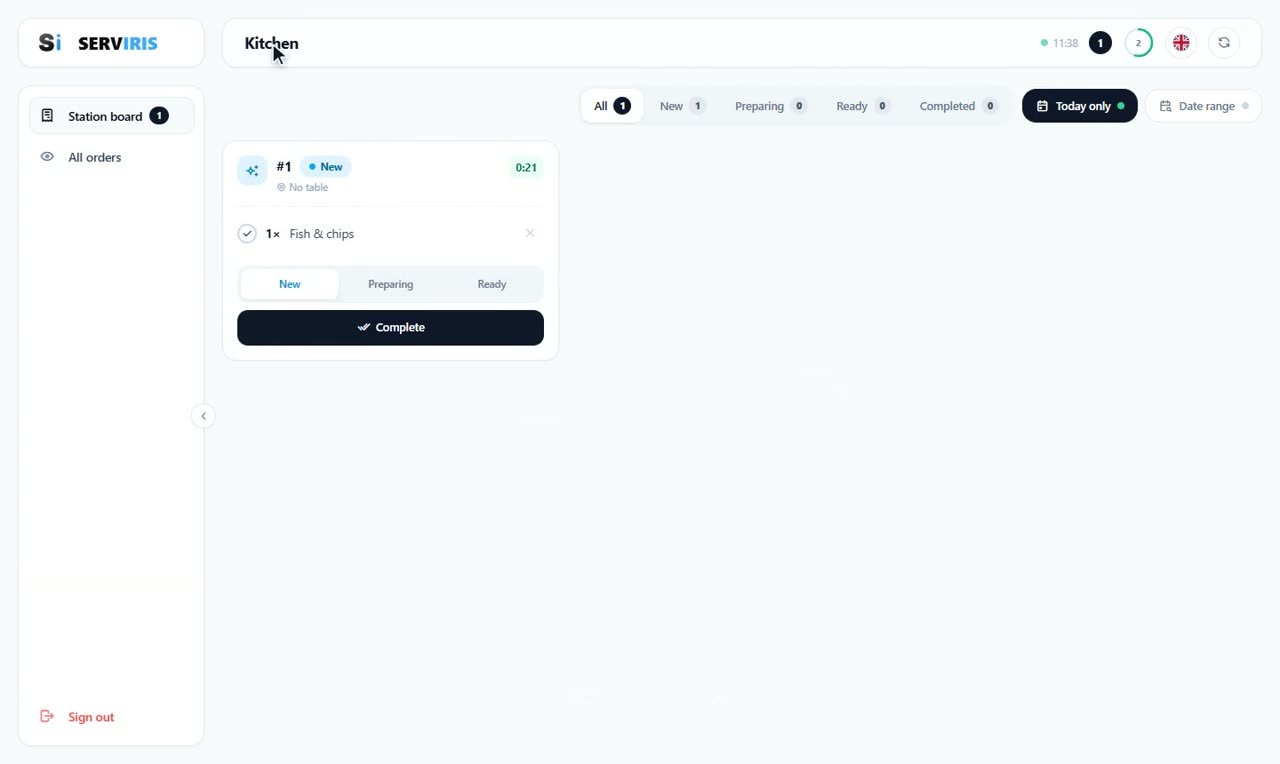
At the display address we sign in as “kitchen”: ticket #1 shows only the Fish & chips, its waiting time counting. Up top, the status tabs with their counts, the clock, the refresh ring, “Today only” and the date range.
-
8
Expo view
The eye — “All orders” — opens the full picture: the whole order, both items, exactly as the front of house sees it. We close it, take the ticket, and move it on.

-
9
The bar's screen
Sign out, sign in as “bar”: the same ticket #1, now only the Elderflower press, and the Bar walks it to “Ready” — the toast confirms the ticket updated. Each station works its own part; the order stays one.

Good to know
The status belongs to the order, not the station — agree on who presses “Ready” (usually the last station or the pass).
An old tablet on a stand = a ready kitchen display. No special hardware needed.