
Catalogue Essentials
Tags
Tags are the badges on your products — “New”, “Spicy”, “Vegan”. We build six classics, each with its own icon and colours, so they stand out at a glance.
All the points of the film 5 steps · 2:57
What you will learn
- Creating a tag with a name
- Picking an icon from the full catalogue with search
- Text, background and border colours
Step by step
-
1
The Tags page
Left menu → Tags. It starts empty; “+ Add Tag” opens a four-step wizard with a live preview pill that repaints as you type — “Veg…” on its way to “Vegan”.

-
2
Three colours that work together
Text, background, border. The rule: a soft background with darker text from the same family. “Vegan” starts from calm slate before it earns its green, and the preview shows exactly what lands on the menu.

-
3
An icon from thousands
The search digs through 4,962 icons. For “Vegetarian”, type what you mean and pick — the right icon makes a tag recognisable before it is even read.

-
4
Fine-tune with the colour picker
Every swatch opens a full picker — drag around, or paste a hex. Here “Gluten-free” tries its colours on, with Vegetarian and Vegan already on the list.

-
5
Your collection
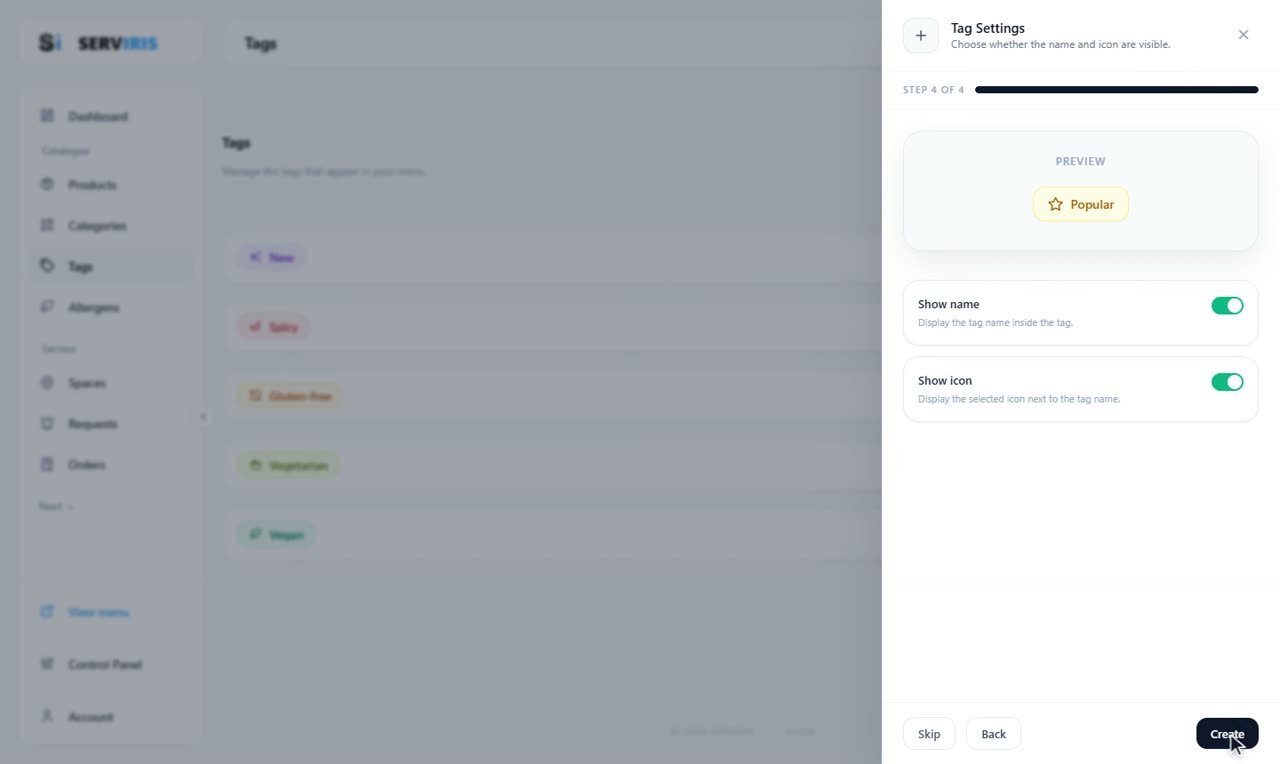
The last step chooses whether the name and the icon show — “Popular” wears its star. Six everyday tags — New, Spicy, Gluten-free, Vegetarian, Vegan, Popular — cover most kitchens. Tied to products in the Products lesson, they appear on the menu automatically.
Good to know
Few and steady: if every dish wears three badges, no badge stands out.